Does this feature deserve a video?
Not every release needs a video, and making one for every small change trains users to ignore them. Sort releases into three tiers before you plan anything:
- Headline features change how people work, are visible in the interface and have a clear before and after. These get a dedicated video, an email, an in-app announcement and social posts.
- Useful improvements make an existing workflow faster or clearer. Give them a scene in your monthly update video and a line in the changelog.
- Fixes and internal changes stay in the written changelog.
A quick test: if you can show the feature in one or two shots and a customer would describe it to a colleague in a sentence, it can carry its own video. If explaining it takes a paragraph about settings, it needs a help article first and maybe a recorded walkthrough, not an announcement clip.
The pain, name, proof, path structure
A feature video is shorter than a launch video because the audience already knows your product. Four parts cover it in about 20 seconds:
- Pain, 0 to 3 seconds. The friction users had before, in their words. "Still copying last month's invoice?" works because they have done it.
- Name, 3 to 5 seconds. The feature's name, exactly as it appears in your interface, so people can find it.
- Proof, 5 to 15 seconds. The feature working in the real product. One or two scenes: where it lives, then what it does.
- Path, last 5 seconds. Where to find it and one action, such as "open any invoice and click Make recurring".
Lead with the benefit, not the release. "Invoices that repeat themselves every month" is a reason to care, while "Introducing Recurring Billing v2" is an internal milestone. Keep version numbers and team names for the changelog, and keep the video to one feature.
Capture the feature the way customers will see it
The most common problem with feature videos is that they show something slightly different from what ships. Capture after the feature is live in production, or on a staging environment that matches it exactly, and use the same labels, icons and placement customers will find.
- Show the entry point. One shot of where the feature sits on the page saves a pile of support questions.
- Show it in context. A new panel is easier to understand when the viewer sees the familiar page around it.
- Use realistic data. A recurring invoice for a real-looking client tells a story; an empty form does not.
- Check who gets it. If the feature is behind a flag or a plan, turn it on for your demo account and say in the narration or the post who has access.
If the feature is only partly rolled out, say so. A video that promises something a customer cannot find in their account creates support tickets instead of adoption.
Where to post it and how to reuse it
- In the product: an in-app announcement reaches active users where they can try the feature right away.
- Changelog and help center: put the video at the top of the entry, above the written details.
- Customer email: use a still frame with a play button that links to the video, since many email clients will not play video inside a message.
- LinkedIn and X: upload natively and put the benefit in the first line of the post. Feeds often play video without sound, so the on-screen text must make sense alone.
- Sales and success teams: send it to the prospects and customers who asked for the feature.
Keep the scenes after the announcement. The same feature shots can open your next monthly update video and slot into your next launch video or explainer refresh, so a single capture pays off several times.
A 23-second announcement for recurring invoices in Ledgerly (a fictional invoicing app), scene by scene
Every scene below is a real Wevi template; open one to see it move. The narration runs at a natural pace of about 2.4 words a second, so it fits the scene.

01Pain0-3 sec
The word "Still" rises alone and hangs for a moment, then types out into "Still copying old invoices?"
“Still copying old invoices every month?”
Template: Word to Sentence Typing. Alternatives: Hook Text Pop, Chat Bubble.
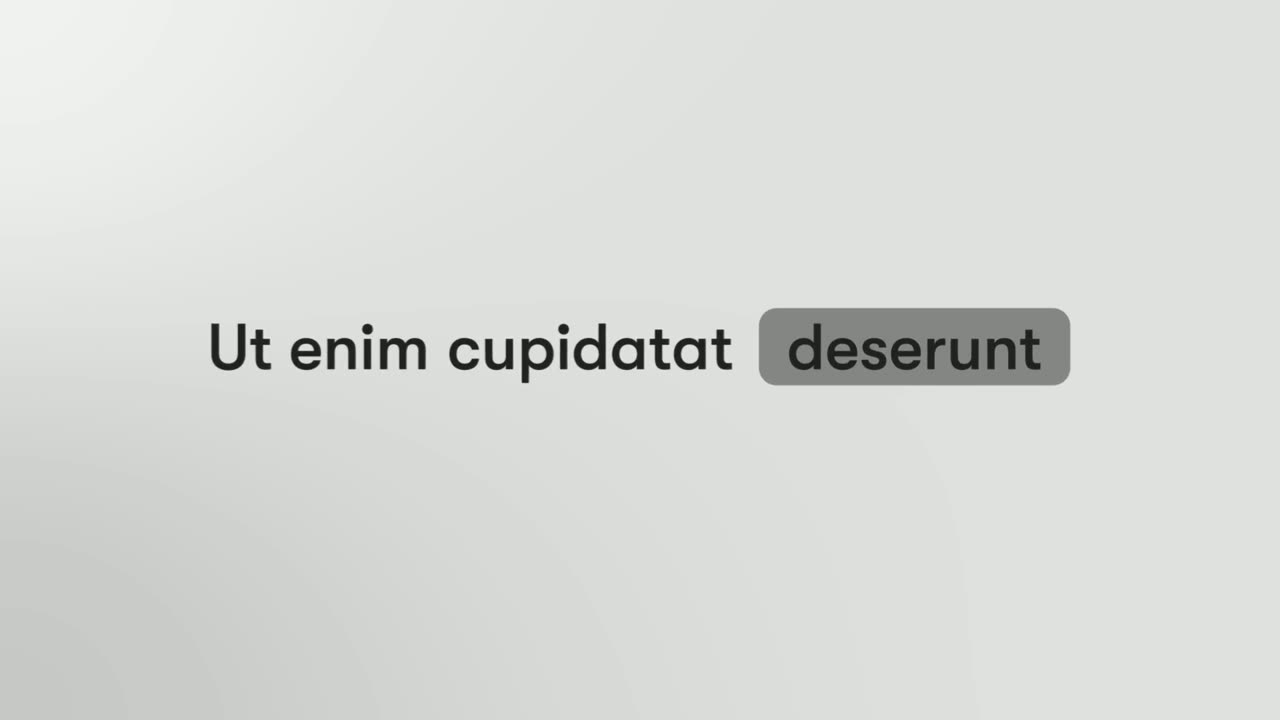
02Name3-5 sec
"New: Recurring invoices" appears with the word Recurring sitting in a status pill.
“Meet recurring invoices.”
Template: Spotlight Text Block. Alternatives: Glow Sweep, Typed Motion Title.
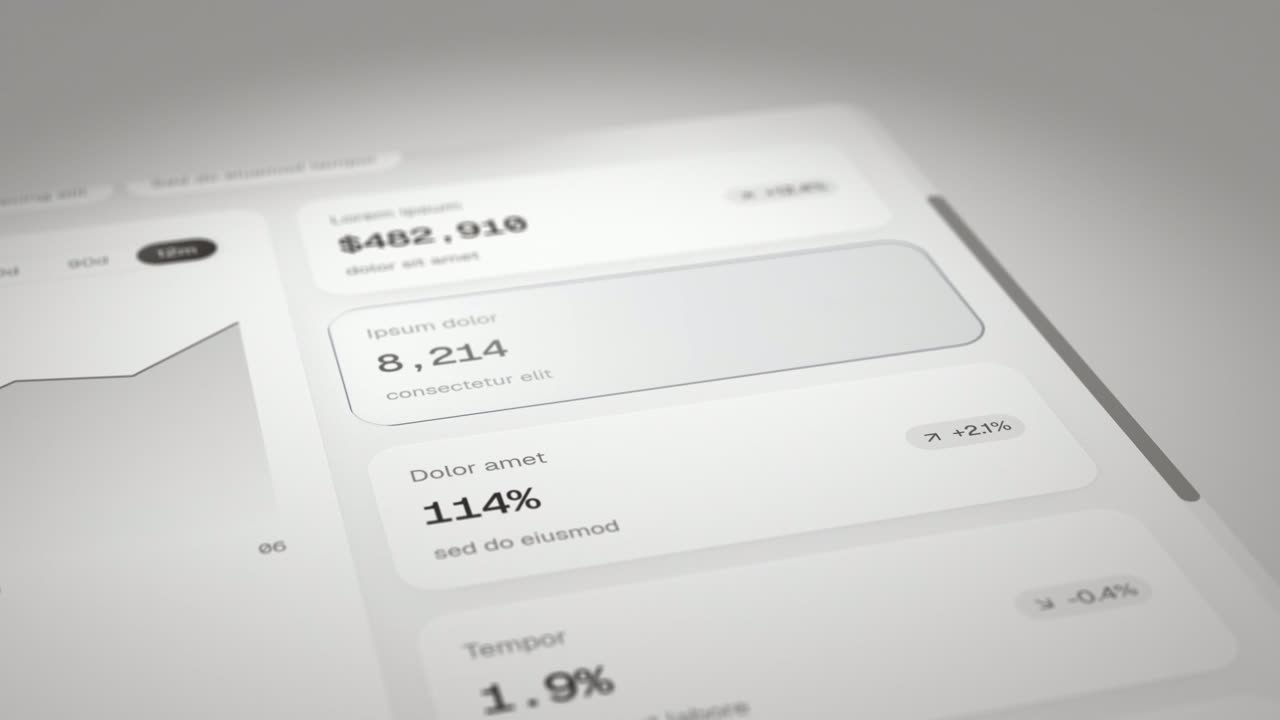
03Proof: what it does5-10 sec
The real invoice page lies back in 3D, an outline grows where the new Repeat panel belongs, and the panel fills in with a soft glow.
“Set any invoice to repeat weekly, monthly or yearly.”
Template: Expand & Fill. Alternatives: Drop Into Place, Feature Drop-In.
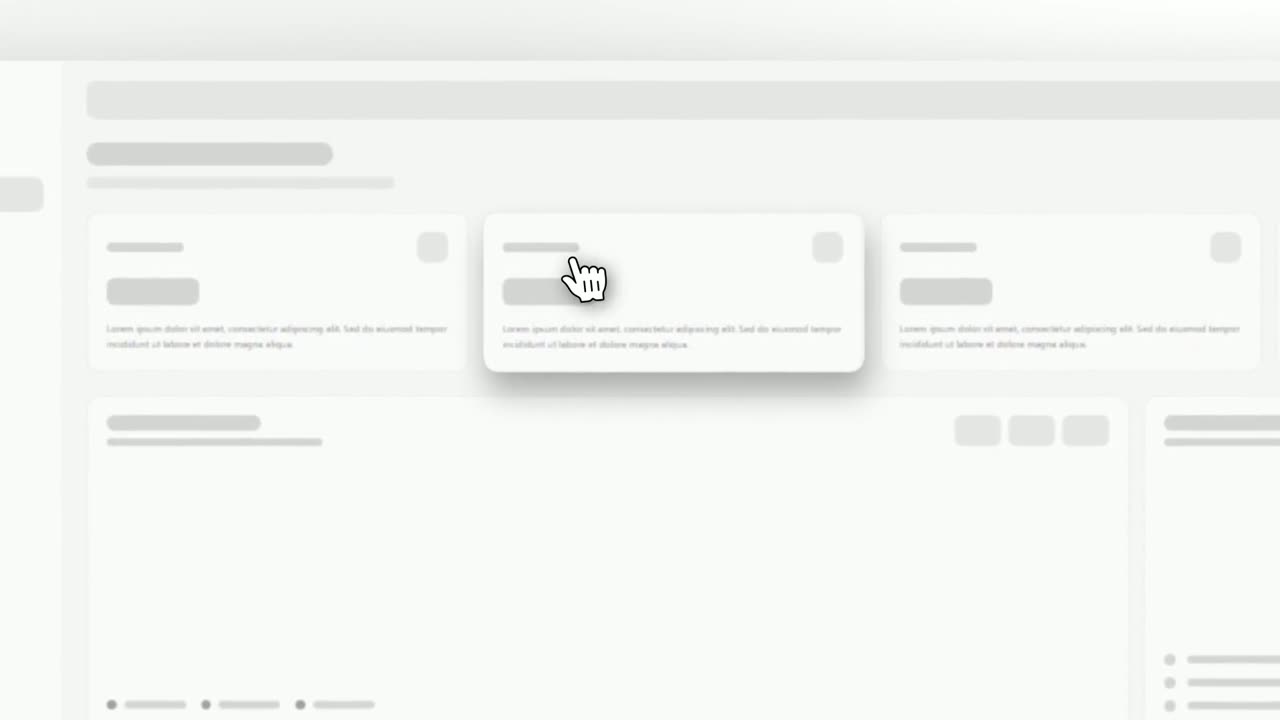
04Where it lives10-15 sec
The full invoice page, then the camera moves in on the Make recurring button, which lifts slightly as the cursor clicks it.
“It's one button on every invoice, right beside Send.”
Template: Cursor Select. Alternatives: Cursor Press, Focus Outline.
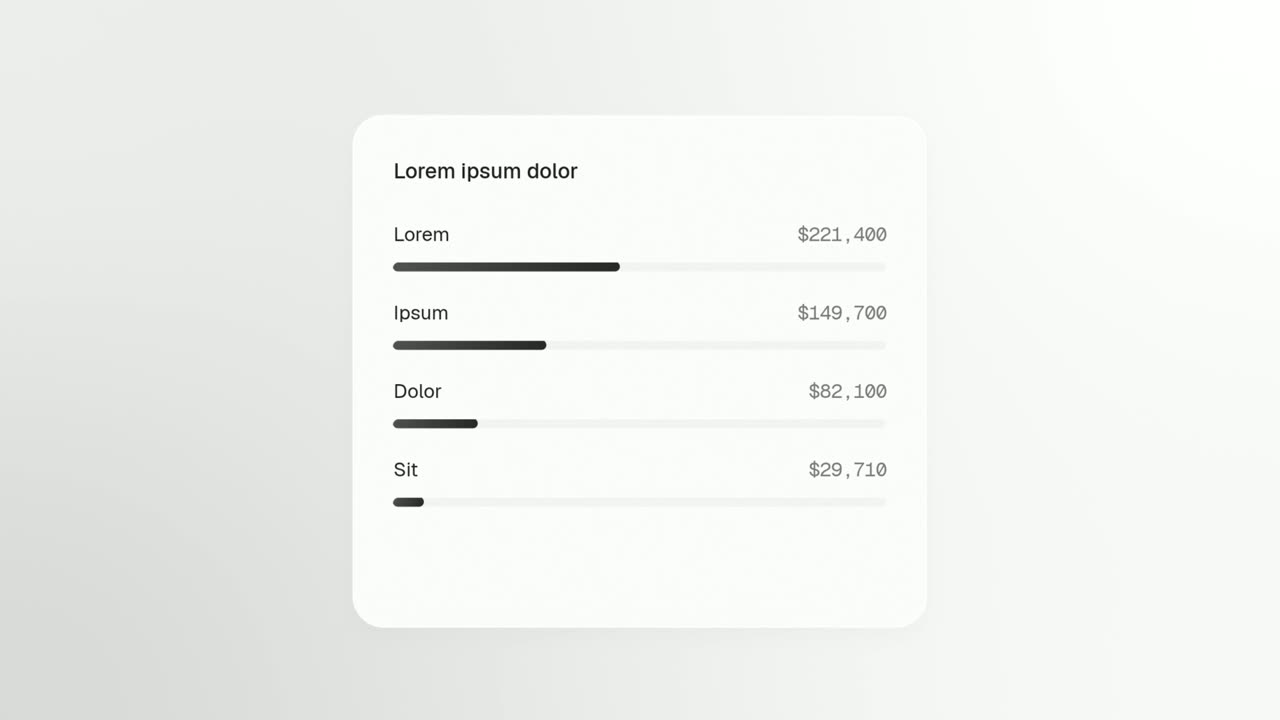
05Result15-18 sec
The Upcoming invoices card fills itself in with the next three dated drafts, then a band of color sweeps across.
“The next three are drafted already.”
Template: Window Rise. Alternatives: Push Down.
06Call to action18-23 sec
The Ledgerly logo appears, then a "Try recurring invoices" button that the cursor clicks.
“Live on every Ledgerly plan today. Give it a try.”
Template: Call to Action. Alternatives: Logo Toggle.
Checklist
- Confirm the feature is a headline release, not a fix that belongs in the changelog.
- Write the pain line in the words customers used when they asked for it.
- Use the feature's exact in-product name on screen.
- Capture from production, or a staging copy that matches it, after the UI is final.
- Show where the feature lives, not only what it does.
- Keep it to 15 to 30 seconds and one feature per video.
- Tell viewers how to try it: the page, the button, or the plan that includes it.
- Publish the video, changelog entry and in-app announcement on the same day.
- Send it to every customer and prospect who asked for the feature.
Mistakes to avoid
- Announcing the name, not the benefit
- "Introducing Smart Rules" means nothing until you show what it saves. Open with the pain and let the name land second.
- Several features in one announcement
- Three features in 20 seconds blur together. Give the headline feature its own video and roll smaller ones into a monthly update.
- Showing a UI that has since changed
- Capturing from a design file or an early build means the video shows buttons customers cannot find. Capture the shipped version.
- Skipping where to find it
- Viewers who are sold on the feature still have to locate it. One shot of the entry point does more than a paragraph of instructions.
- Overselling a partial rollout
- If only some plans or regions get it, say so in the video or the post, or the announcement turns into support tickets.
How to make it with Wevi
Add your website
Once you add your site, Wevi has your logo, colors and fonts, so each new feature video matches the last one without extra design work.
Plan the four parts
Tell the Wevi Agent what shipped, who asked for it and where it lives, and it drafts the pain, name, proof and path scenes with copy and narration. Or pick templates built for single features, such as a panel appearing in place or a button being clicked.
Capture the new feature
Open the page where the feature lives, sign in yourself if it is inside your app, and select the new panel, button or card. Wevi lifts it off the page so it can glow, drop in or be clicked on camera, and never asks for your password.
Render and post
Add an AI voiceover and music and render in 16:9 for your changelog, email and social posts. If your team works in Claude or ChatGPT, ask it to make the announcement through Wevi's MCP connector as soon as the release ships.
Templates for this video
Feature · your real UI
Expand & Fill
Expand & Fill is a five-second scene where your real page lies back in 3D, an outline grows from a single point in the empty spot where one component…
Opener
Spotlight Text Block
Spotlight Text Block is a 2-second text scene where a few words appear and one of them sits inside a pill, like a status tag in an app.
Feature · your real UI
Feature Callout
Feature Callout is a quick, three-second scene where a few words appear, one real piece of your interface sits in the line as if it were a word, and…
Feature · your real UI
Cursor Select
Cursor Select is a five-second scene that opens on your whole product page, moves the camera in on one control, lifts it slightly and has a cursor…
Feature · your real UI
Window Rise
Window Rise is an app window animation where one real card, panel or chat window from your product floats alone and fills itself in.
Feature
Switch On
Switch On is a toggle switch animation: a settings row shows your logo on an app icon tile, your product name and a switch that is off, and a cursor…
Questions
How long should a feature announcement video be?
15 to 30 seconds for one feature. Your audience already knows the product, so you can skip the introduction and go straight to the problem the feature solves and the feature itself.
Should every new feature get a video?
No. Save dedicated videos for features that change a workflow and are visible in the interface. Group smaller improvements into a monthly update video and keep fixes in the written changelog.
Who is a feature announcement video for, customers or prospects?
Mostly existing customers, who need to know the feature exists and where to find it. The same video works for prospects and sales follow-ups if the call to action changes from trying it now to starting free.
When should I make the video?
Capture the feature once the interface is final, ideally from production right after release or from a staging copy that matches it. Publish the video on the same day as the changelog entry and the in-app announcement, so every channel points to something people can use.
Can I show a feature that is behind a login or a feature flag?
Yes. With Wevi you sign in to your own app in its browser and capture whatever your account can see, so enable the flag for your demo account first. Wevi never asks for your password.
What if the feature needs a full walkthrough?
Then make both: a 20-second announcement that creates interest and a recorded walkthrough in your help center for people who want every step. Wevi makes the first; a screen recorder is the better tool for the second.
Related guides
Release notes video
Turn a changelog or monthly update into a video people watch.
Read the guideIntegration announcement video
Announce a new integration with both logos and the workflow it unlocks.
Read the guideProduct launch video
The 30 to 45 second video for launch day: what it is, who it is for, why now.
Read the guide