Lead with the job, not the logos
Two logos and a plus sign tell a viewer that something exists, not why they should care. The people who care about a new integration are the ones who use both tools today and move data between them by hand. Your video should speak to that exact person and name the job that just disappeared.
Write the announcement as a before and after:
- Before. The manual step: exporting, retyping, pasting a link into another app, checking two dashboards.
- Switch on. How little it takes to connect, ideally one screen and one click.
- After. The data or action arriving in your product on its own, shown in the real interface.
- Next step. Where to turn it on and who can use it, such as which plans include it.
A useful test: if you removed the partner's logo, would the video still explain what changed? If not, the story is about the logo, not the workflow, and it will not move anyone to connect.
Clear the partner's brand before you publish
An integration video puts another company's name and logo in your marketing, so treat their brand with care and involve them early.
- Read their brand guidelines. Most software companies publish rules for how others may use their name and logo. Use their current logo files and spell the product name exactly as they do.
- Ask for review. Many partner programs ask to approve co-marketing material that uses their brand before it goes live. Build that review time into your launch date.
- Do not overstate the relationship. Building on a public API does not make you an official partner. Avoid words like official, certified or partnered unless they are true.
- Only show real connections. When a scene shows several tool logos, every one should be a tool your product actually connects to.
The upside of involving the partner is reach. If they agree to share the video with their own users, your announcement lands in front of the exact audience that can use it.
Show the connection inside your product
The strongest integration videos spend most of their time in your real interface, because that is where the customer will see the benefit. Plan three product moments:
- The setup. Your integrations or settings screen with the connect button or toggle. A switch flicking on, or a cursor pressing Connect, tells viewers setup is quick.
- The link. What triggers what. A deal marked won creates a project. A new form entry creates a contact. Show the two sides and the line between them.
- The result. The data arriving where people work: a new row in a list, a card that fills in, a status that updates, labeled with where it came from.
Capture these screens from a demo workspace connected to a real test account of the partner tool, so the synced data looks genuine. Keep the partner's own interface to a brief appearance at most. The viewer is deciding whether to use your product, and that is what they should see.
Where to post it, and what to post with it
An integration announcement has a clear audience, so distribution should be targeted rather than broad.
- Your integration page and directory listing. The video answers the question of what this actually does, right where people decide to connect.
- Changelog and release notes. Embed it at the top of the entry.
- In-app announcement. Show it to users whose workflow involves the partner tool, if you can identify them.
- Email. Send it to customers who asked for the integration or already use the partner tool.
- The partner's channels. Their blog, newsletter, app marketplace or social accounts, if they agree.
- LinkedIn and X. Tag the partner's company account so they can reshare it to their followers.
Always pair the video with a setup guide. The video creates the intent; the help article should let someone finish the connection in a few minutes without contacting support.
A 26-second integration announcement for a sample project tool, scene by scene
Every scene below is a real Wevi template; open one to see it move. The narration runs at a natural pace of about 2.4 words a second, so it fits the scene.
01Problem0-3 sec
One plain statement zips together word by word, then splits apart: Won deals still get retyped by hand.
“Won deals still get retyped by hand.”
Template: Word Zipper. Alternatives: App Stack Fly-In, Word to Sentence Typing.
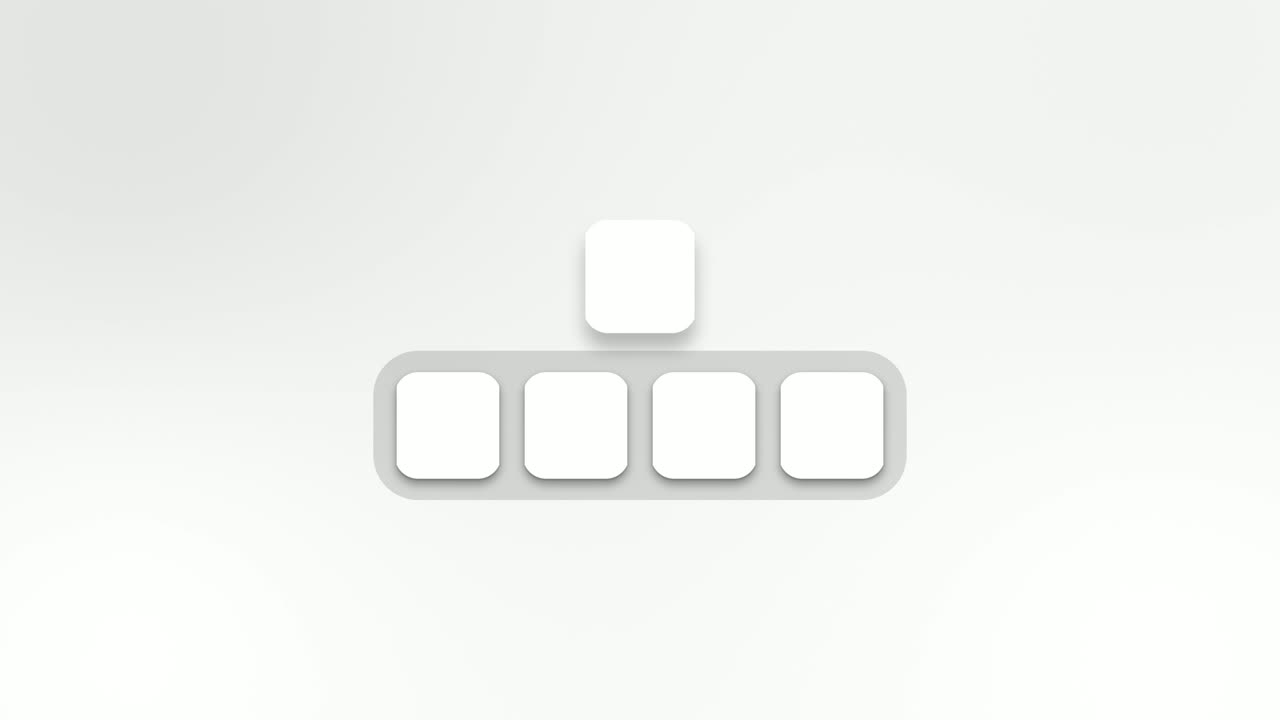
02Announce3-7 sec
Five app icons sit in a dock: Dealbook and three other tools the team uses, with Northpine in the middle. After a short hold the Northpine icon rises above the row as the others close ranks.
“Deals live in Dealbook. Now Northpine picks them up.”
Template: Dock Lift. Alternatives: Feature Callout.
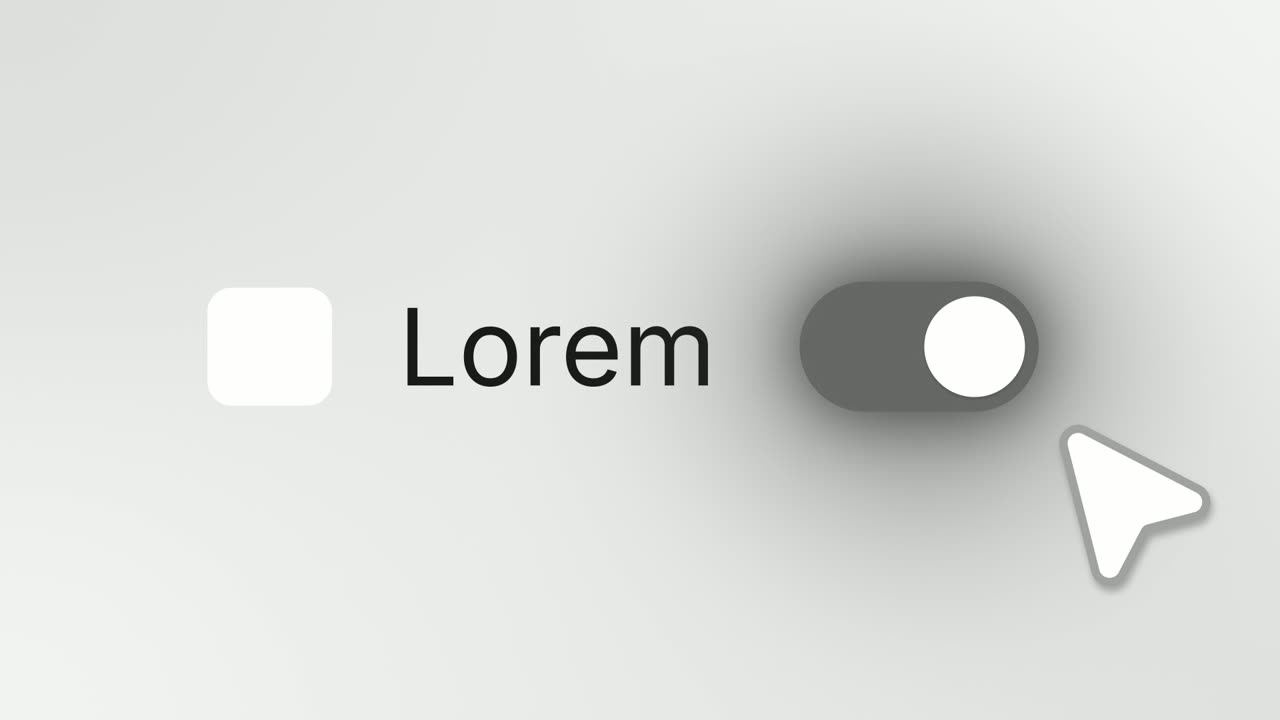
03Switch on7-9 sec
A settings row with the Dealbook logo and the name Dealbook sync, and a switch that a cursor flicks on as the track floods with brand color.
“Switch on Dealbook sync.”
Template: Switch On. Alternatives: Logo Toggle.
04How it works9-13 sec
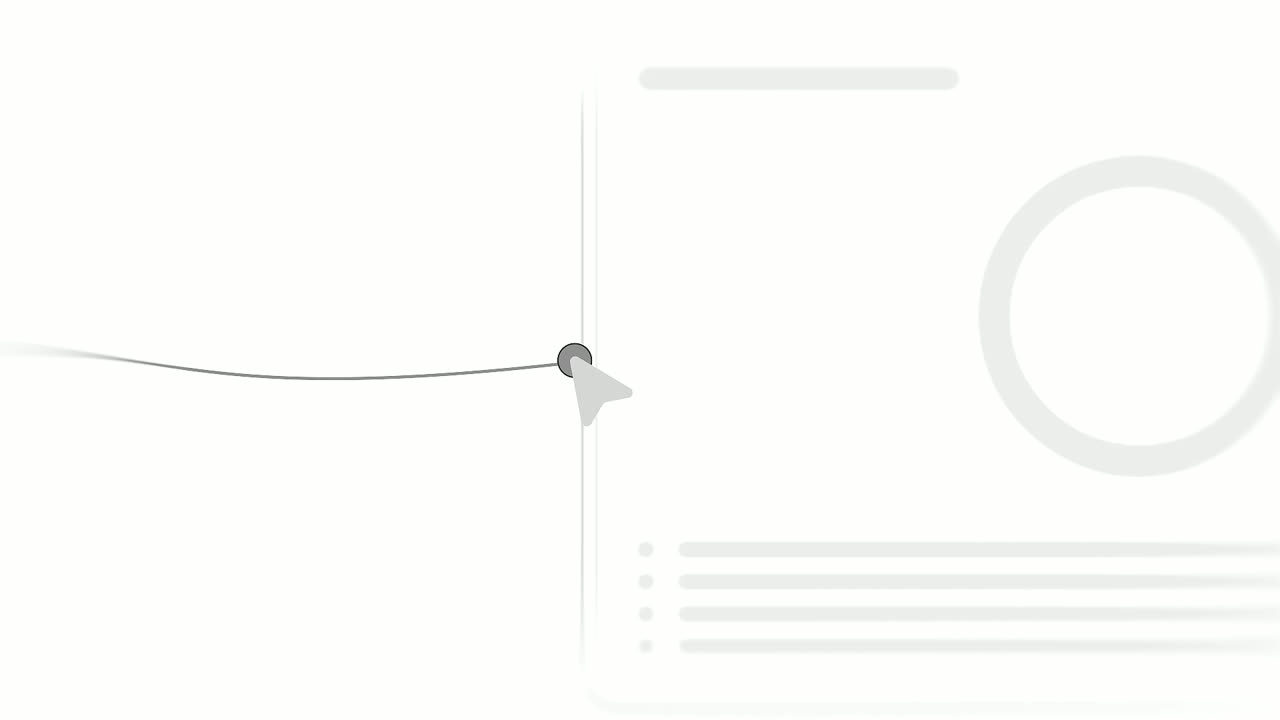
Two real cards from Northpine's integration screen, Deal marked won and Create project, sit side by side while a cursor drags a line from the first to the second.
“When a deal closes, a project starts automatically.”
Template: Cursor Connect. Alternatives: Cursor Select.
05Result13-16 sec
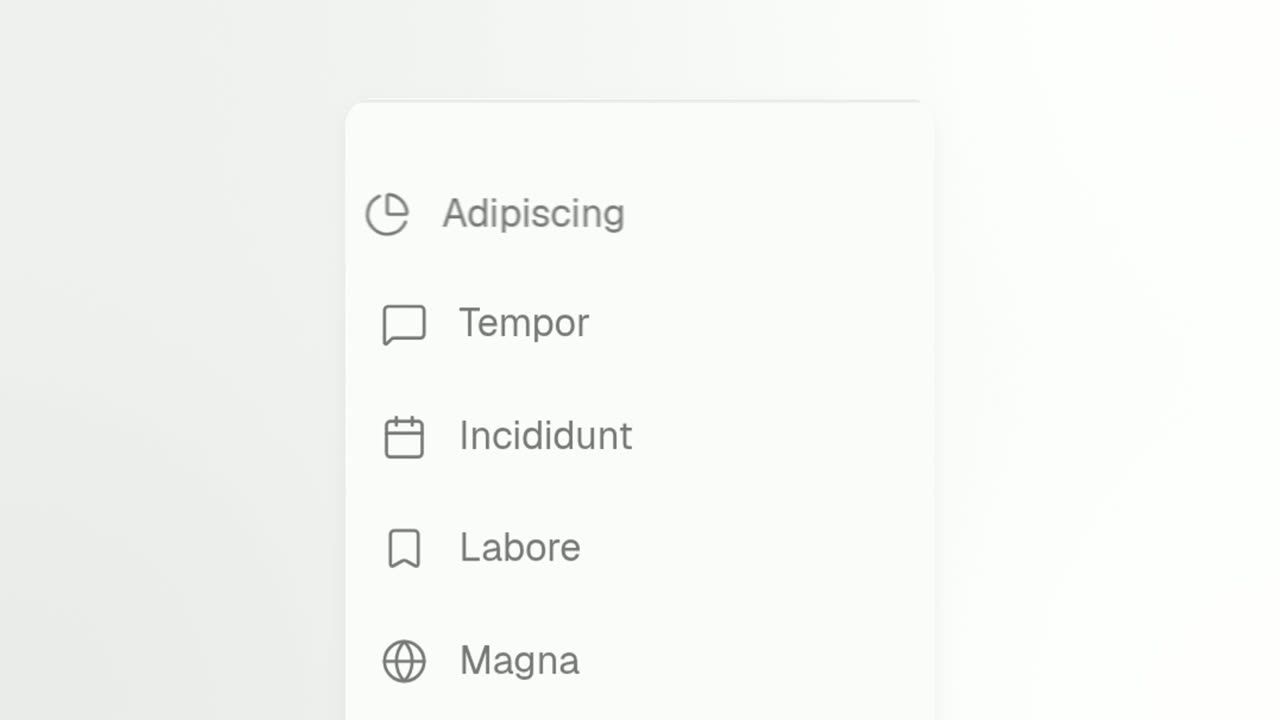
A close-up on Northpine's real project list as rows snap down and new projects, each tagged From Dealbook, slide in at the top.
“New projects arrive the moment deals close.”
Template: Push Down. Alternatives: Feature Drop-In.
06Ecosystem16-21 sec
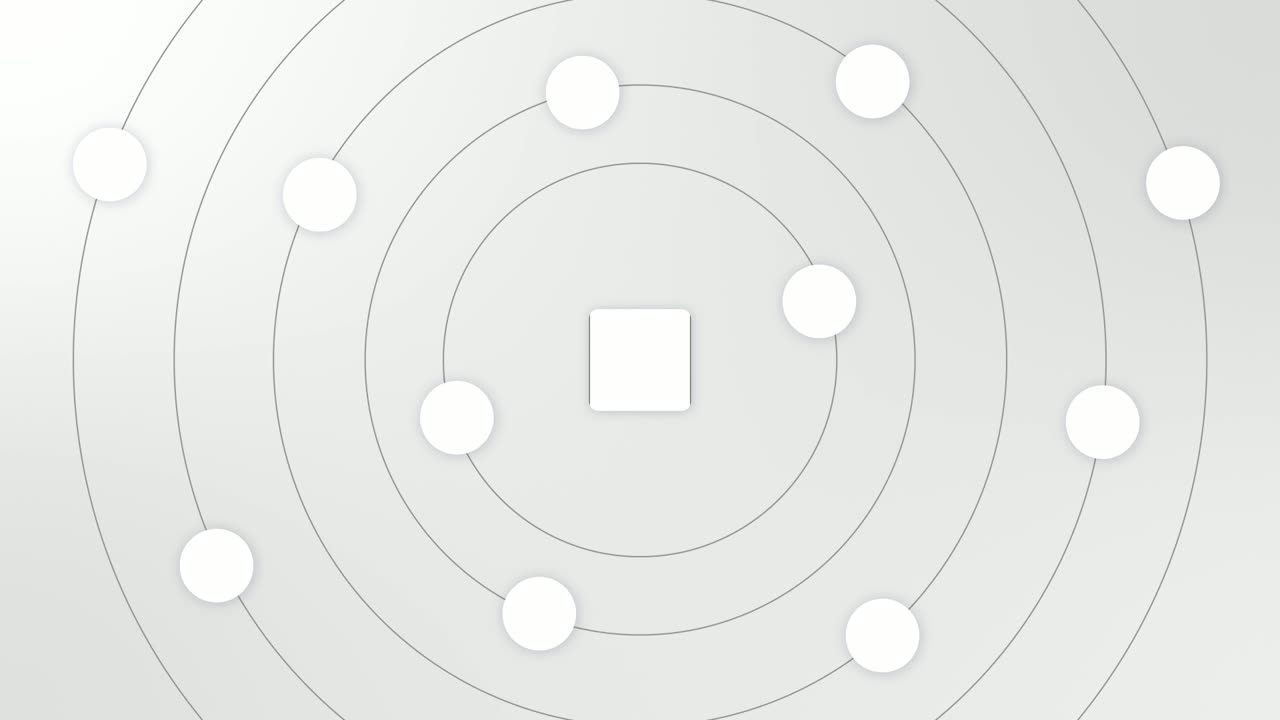
The Northpine logo in the center with Dealbook and the other tools it connects to circling it on rings.
“Dealbook joins the tools your team already connects.”
Template: Integration Orbit. Alternatives: Image Ring.
07Call to action21-26 sec
The Northpine logo appears, then a Connect Dealbook button that a cursor clicks.
“Turn it on today from your Northpine settings.”
Template: Call to Action. Alternatives: Simple Button Press.
Checklist
- The partner has approved the use of their name and logo
- Partner and integration names are spelled exactly as they write them
- The manual workflow it replaces is named in the first scene
- Setup is shown in your real settings screen
- Synced data appears inside your product, labeled with its source
- Every logo on screen is a tool you actually connect to
- Plan availability is stated if the integration is not on every plan
- A setup guide is published and linked next to the video
- The posting date and copy are agreed with the partner
- The video is embedded on the integration page and in the changelog
Mistakes to avoid
- Two logos and a plus sign
- Logos announce that something exists, not what it does. Spend most of the video on the workflow.
- Implying a partnership you do not have
- Using a public API is not an official partnership. Check before you use words like partner, official or certified.
- Showing the partner's product more than yours
- Viewers are deciding whether to use your product. Keep the partner's interface brief and your own front and center.
- Skipping the setup step
- People want to know how much effort it takes. One shot of the connect screen answers that before they ask.
- An ecosystem visual for one integration
- A crowd of logos says breadth, not this new connection. Save orbit and ring scenes for roundups or a closing reminder of everything you connect to.
- Launching without telling the partner
- You miss their review and their reach. A shared launch date lets both companies post on the same day.
How to make it with Wevi
Add your website
Paste your URL and Wevi pulls your logo, brand colors and fonts, so the announcement matches your integration page and changelog.
Plan the story
Brief the Wevi Agent with the workflow before and after the integration, or pick scenes yourself: Dock Lift or Feature Callout to announce it, Switch On or Logo Toggle for setup, Cursor Connect for what triggers what, and Integration Orbit for the bigger picture.
Capture the integration in your product
Wevi opens your app in a real browser and lifts out the connect button, the trigger and action cards, and the list where synced data lands. You sign in yourself for screens behind your login; Wevi never asks for your password.
Render and send it for partner review
Add an AI voiceover and music and export a 1080p 16:9 MP4 to share with the partner before launch. You can also ask Claude or ChatGPT to build it in one step through Wevi's MCP connector, set up at wevi.ai/mcp.
Templates for this video
Transition
Dock Lift
Dock Lift is an app icon animation: five icons sit in a dock with your brand in the middle, and after a short hold your icon lifts out of the row and…
Feature
Integration Orbit
Integration Orbit is a five-second scene where your brand logo sits in the middle while up to eleven other logos circle it on rings.
Feature · your real UI
Cursor Connect
Cursor Connect is a four-second scene where two real pieces of your product sit side by side and a cursor drags a line from the first to the second.
Feature
Switch On
Switch On is a toggle switch animation: a settings row shows your logo on an app icon tile, your product name and a switch that is off, and a cursor…
Transition
Image Ring
Image Ring is a 3D carousel animation: up to ten cards, each a company logo or a real image, turn in a ring around a short headline.
Problem
App Stack Fly-In
App Stack Fly-In is a 2-second scene where a sentence types in an extreme close up, then the shot pulls back as three app icons fly in and stack…
Questions
What should an integration announcement include?
Say what the two tools now do together, who it is for, how to turn it on and which plans include it. Show the result inside your product and link to a setup guide. Partner logos help recognition, but the workflow is the message.
Do I need permission to use a partner's logo in a video?
Check the partner's brand guidelines first, since most software companies publish rules for using their name and logo, and many ask to review co-marketing material before it goes live. When in doubt, ask their partner or marketing team. This is general guidance, not legal advice.
How long should an integration announcement video be?
20 to 30 seconds covers the before, the setup and the result. If people need a full walkthrough of settings and field mapping, make that a separate tutorial and link to it from the announcement.
Should every new integration get a video?
Not necessarily. Give a video to integrations many customers asked for or that unlock a new workflow. Smaller connectors can go into a periodic roundup where one scene shows all the new logos together.
How do I announce several integrations at once?
Use one scene that shows them as a group, such as Integration Orbit with up to eleven logos around yours or Image Ring with up to ten cards. Then spend the rest of the video on the one or two connections that change a workflow the most.
Can Wevi capture the partner's app too?
Wevi captures pages you can open in a browser, including ones behind a login that you sign in to yourself. Keep the focus on your own product, and only feature the partner's interface if they have approved it.