LinkedIn and X video specs, checked October 2026
These are the limits that matter for a product video, taken from LinkedIn's and X's own help and advertising pages:
- LinkedIn posts: up to 15 minutes and 5 GB, at least 3 seconds when uploaded from desktop, any aspect ratio from 1:2.4 to 2.4:1, and 10 to 60 frames per second.
- LinkedIn Pages: up to 10 minutes per video.
- LinkedIn video ads: 3 seconds to 30 minutes and up to 500 MB, with 16:9, 1:1, 4:5 and 9:16 all supported.
- LinkedIn captions: attach an SRT file when you post from desktop.
- X: accounts without Premium can upload videos up to 140 seconds and 512 MB, and you can attach an SRT caption file to the post.
A Wevi export is a 1920x1080 MP4 that typically runs 15 to 45 seconds, which sits comfortably inside every one of these limits. For a product video the real constraints are attention and sound, not file specs, so the rest of this guide is about those.
Does 16:9 work on LinkedIn? Where landscape works and where it does not
Yes. A 16:9 video is well inside LinkedIn's accepted range and is one of the four ratios listed for video ads. The honest trade-off is screen space on phones: at the same width, a 16:9 video is a little over half the height of a square one, so it takes up less of the mobile feed than square or vertical video.
Landscape works best on desktop, where the feed is wide, on your company page, in LinkedIn video ads, on X, and everywhere you reuse the file afterward: your website, sales emails and slide decks. Wevi exports landscape rather than square or vertical, so make the most of the space you have:
- Use big type. On-screen lines of a few words stay readable at phone size.
- Prefer close-ups. Show one component at a time instead of full pages with tiny text.
- Keep scenes short. Three to five seconds each holds attention in a scrolling feed.
- Make the opening frame count. It is the first thing people see as the video comes into view.
Avoid cropping a landscape export to square at the last minute; it usually cuts off text and interface at the edges.
Design for the sound-off scroll
LinkedIn's help center says some videos play automatically without sound as people scroll their feed, and members can switch autoplay off entirely. Either way, the first impression is silent. Build the video so it makes sense on mute and let the voiceover add to it.
- Hook in text in the first two or three seconds. A question or a pain your buyer recognizes, large on screen.
- Every claim on screen. If a sentence matters, it should appear as words or be obvious from the product moment on screen.
- Captions from your script. You already wrote the narration, so turn it into an SRT file with one line per scene and each scene's start and end time. Attach it on LinkedIn from desktop and on X.
- A product moment by second five. People on LinkedIn are often weighing tools for work, so show the real thing early.
Then watch it once with sound on. The voiceover should add warmth and detail, not repeat every word on screen.
Write the post around the video
The post text decides whether people press play, and who ends up seeing the video.
- Upload the file natively. A video uploaded to LinkedIn or X plays in the feed; a link to another site asks people to leave before they see anything.
- Open with the outcome. The first line should say what the product does for the reader, not that you made a video.
- Post from a person. A founder or product lead posting with a short personal note, with the company page resharing, usually feels more natural than a page post alone.
- Tag who is involved. Partners, named customers and the teammates who built it, with their agreement.
- One link, one ask. Point to the page the video promises: the trial, the feature page or the changelog.
- Reuse the file. The same 16:9 MP4 can run as a LinkedIn video ad and on X without changes.
Reply to early comments yourself. A product video often prompts specific questions, and answering them in the thread is free follow-up content.
A 23-second LinkedIn video for a sample expense approval tool, scene by scene
Every scene below is a real Wevi template; open one to see it move. The narration runs at a natural pace of about 2.4 words a second, so it fits the scene.
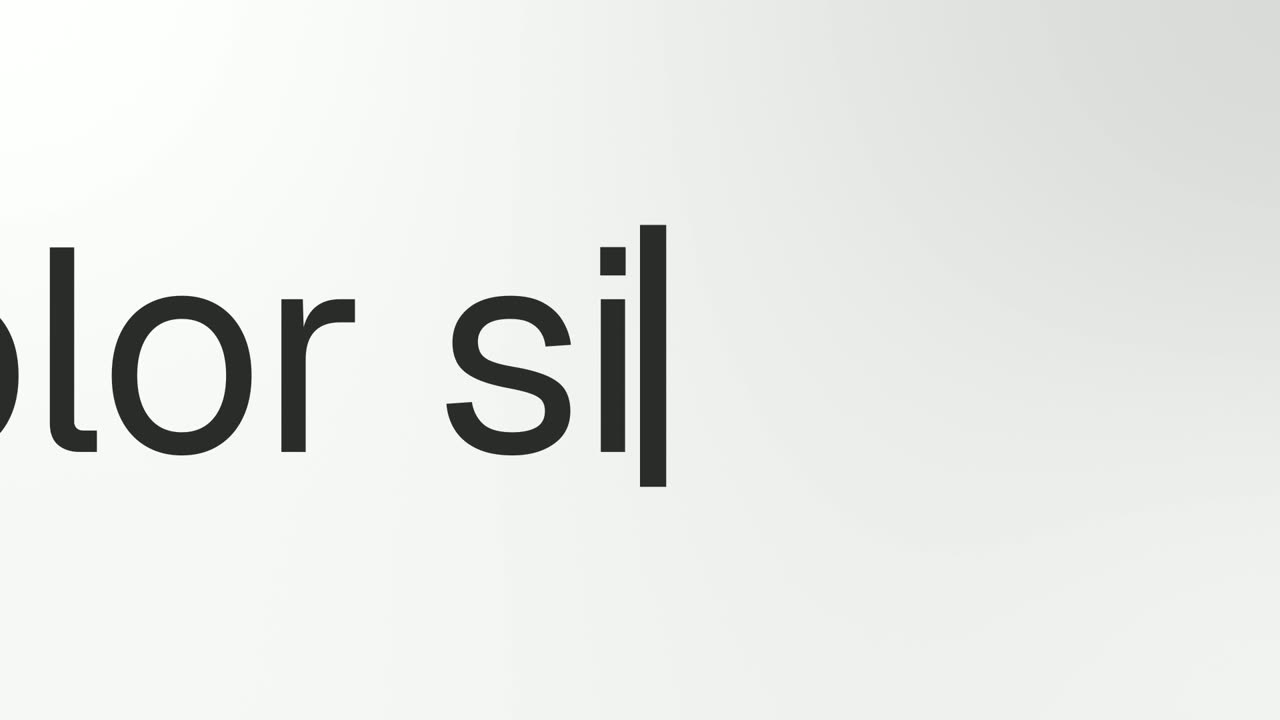
01Hook0-3 sec
One word, Who, rises alone and hangs for a moment, then becomes the start of a short line typed in a big close-up: Who approved this expense?
“Who approved this expense, and when?”
Template: Word to Sentence Typing. Alternatives: Hook Text Pop.
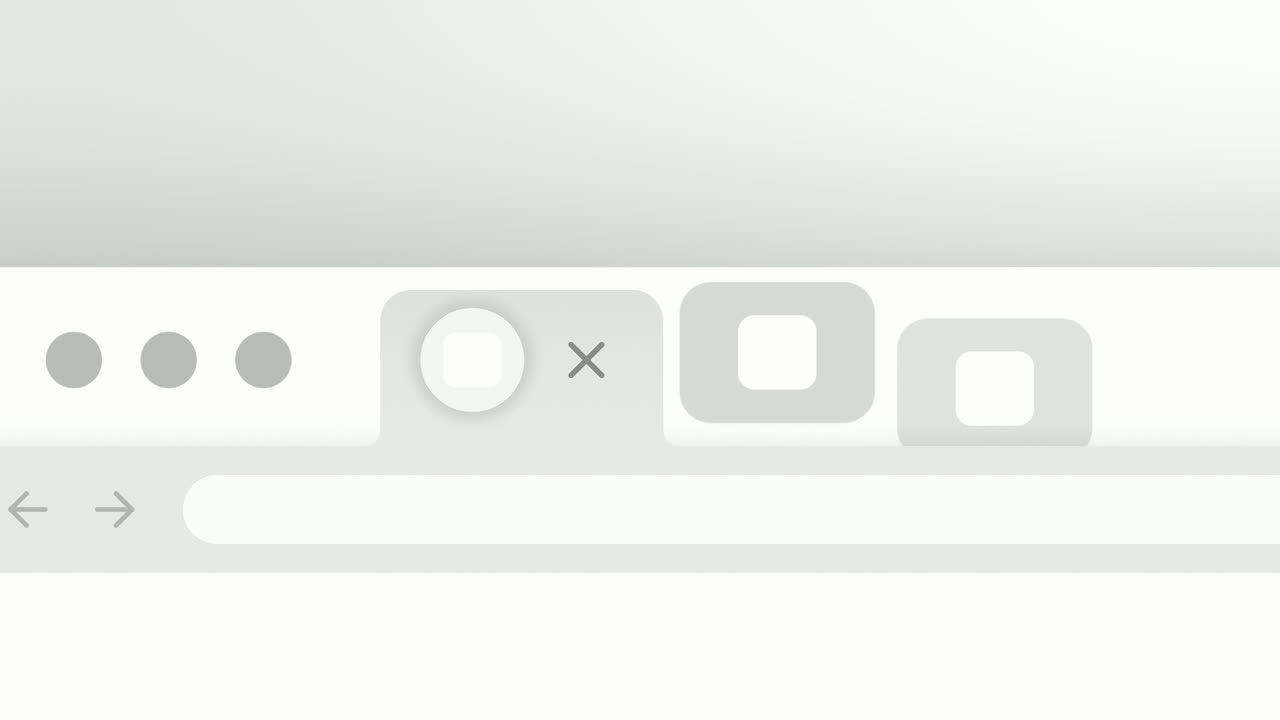
02Problem3-6 sec
A browser tab strip crowded with an inbox, a spreadsheet, a chat app and a bank portal slides past, and the tabs drop away one by one until only Tallyhall is left.
“Four tabs for one expense. Not anymore.”
Template: Close the Tabs. Alternatives: App Stack Fly-In.
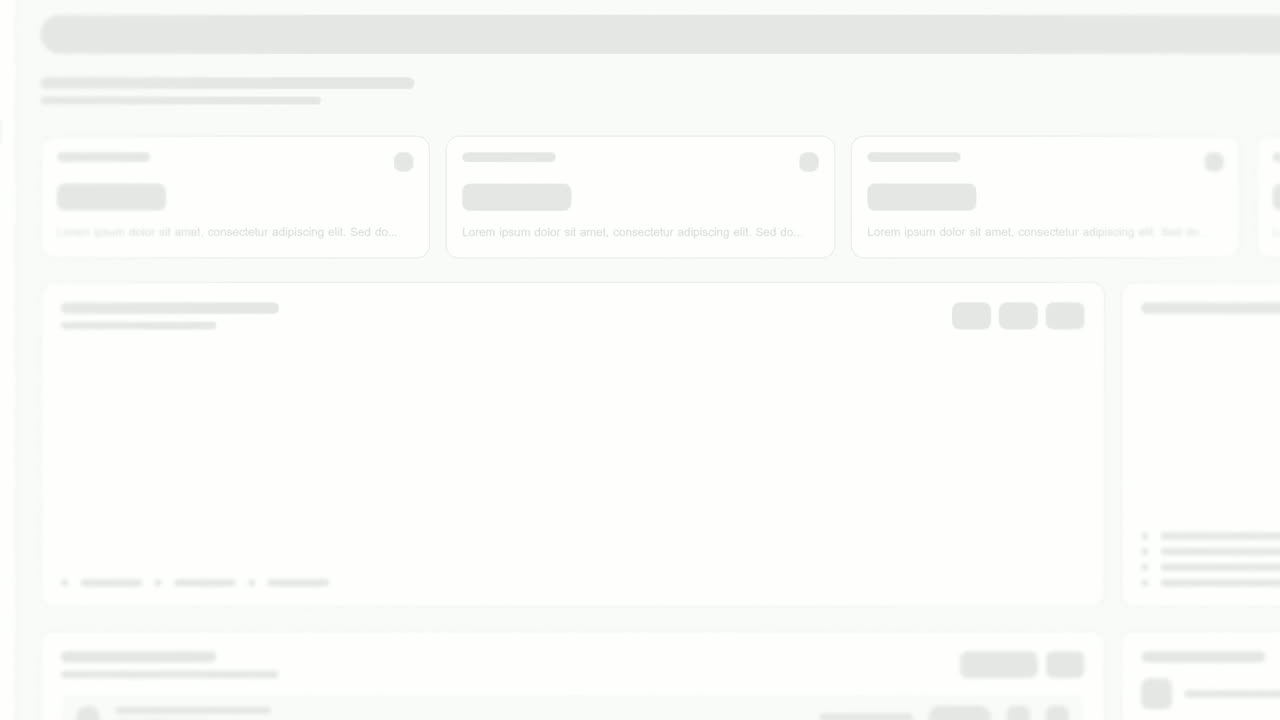
03Product6-9 sec
The real approval request card floats alone, large enough to read on a phone, then cuts to the same card sitting in place on the Tallyhall page.
“Every request lands here with its receipt.”
Template: Feature Drop-In. Alternatives: Turn & Type, Focus Outline.

04Action9-12 sec
The real Approve button sits alone on the background as a cursor presses it.
“Managers approve from one screen.”
Template: Simple Button Press. Alternatives: Cursor Press.
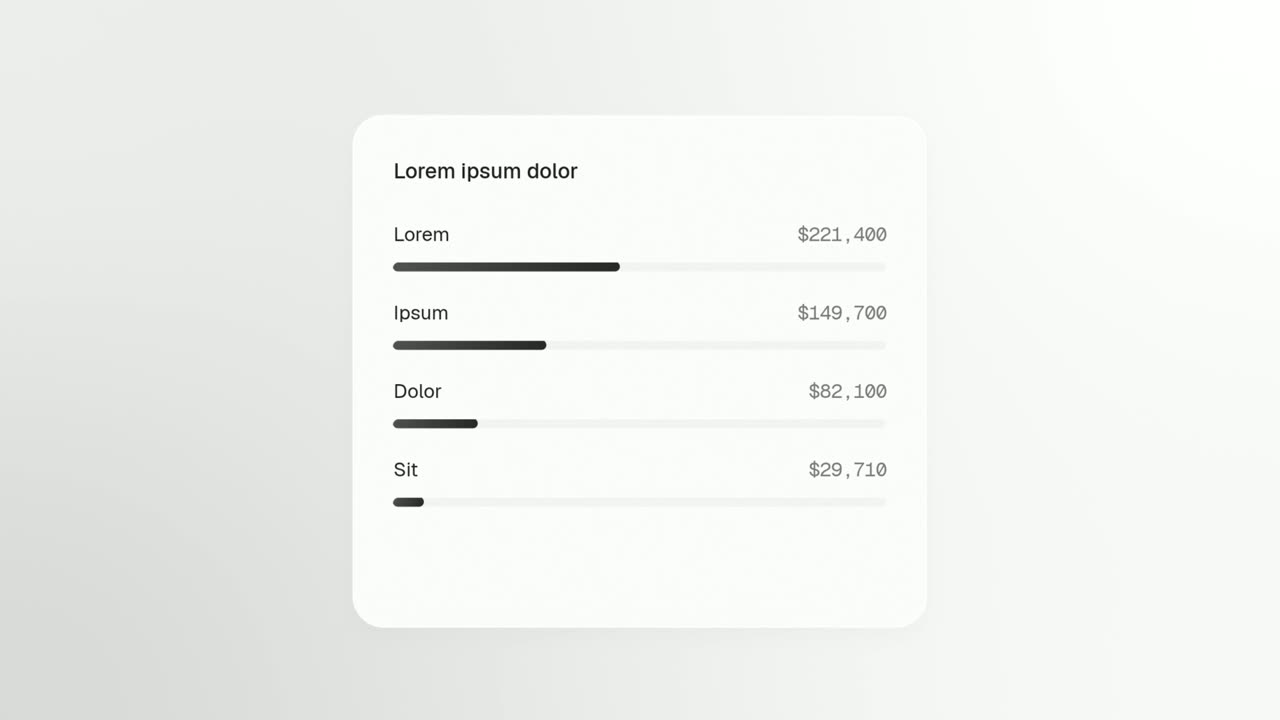
05Proof12-15 sec
The real audit log window opens downward as its entries rise into place, then a band of brand color sweeps across the finished list.
“Every approval logged, with who and when.”
Template: Window Rise. Alternatives: Text Highlight.
06Payoff15-18 sec
The letters of one word tumble around the frame, then snap into place: Reconciled.
“Month end, reconciled.”
Template: Letter Snap. Alternatives: Dual Color Title.
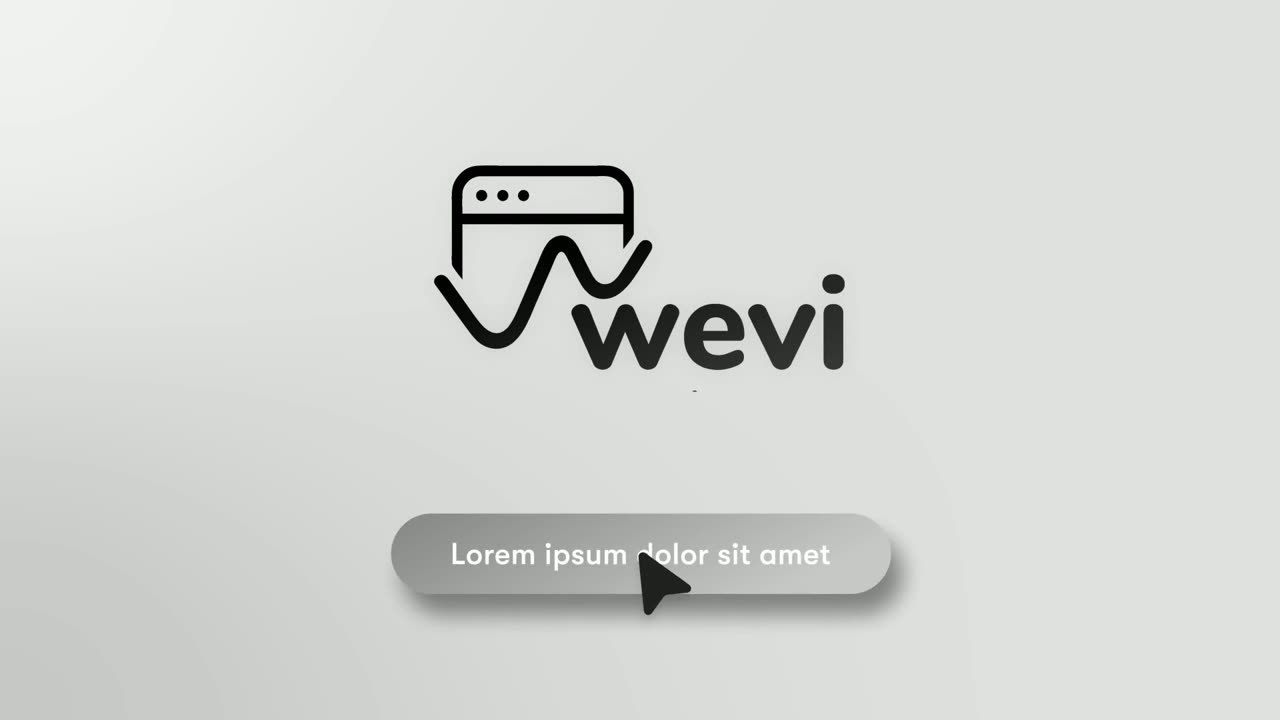
07Call to action18-23 sec
The Tallyhall logo appears, then a Try it free button that a cursor clicks.
“Try Tallyhall free with your finance team.”
Template: Call to Action. Alternatives: Logo Unfold.
Checklist
- The hook reads as on-screen text in the first 2 to 3 seconds
- Every key claim works with the sound off
- An SRT caption file is made from your narration script
- Large type and close-ups of single components, no tiny full-page shots
- The real product is on screen by second 5
- Under 140 seconds if you will also post on X without Premium
- Uploaded natively, not shared as a link to another site
- The first line of the post states the outcome for the reader
- Posted from a founder or product lead and reshared by the company page
- The same 1080p file is reused for LinkedIn video ads
Mistakes to avoid
- Relying on the voiceover
- Some feed videos start without sound, so a message carried only by narration is lost on many first views. Put it on screen.
- Full-page screenshots
- A whole dashboard shrunk into a phone-width landscape frame is unreadable. Zoom into the one component that matters.
- A slow logo intro
- Three seconds of logo is three seconds without a reason to stop scrolling. Open on the problem and bring the brand in later.
- Cropping 16:9 to square at the last minute
- Text and interface near the edges get cut off. Keep the landscape version, or plan a separate square edit from the start.
- Posting a link instead of the file
- A link preview asks people to leave LinkedIn before they see anything. Upload the MP4 directly.
- Repeating the video in the post text
- If the post says exactly what the video says, there is no reason to watch. Use the post to add context: why you built it and who it is for.
How to make it with Wevi
Add your website
Paste your URL and Wevi pulls your logo, brand colors and fonts, so the video is recognizably yours in a crowded feed.
Plan a feed-length video
Ask the Wevi Agent for a 20 to 30 second LinkedIn video that opens on a text hook, or pick scenes yourself. Text-led openers like Word to Sentence Typing and close-ups like Feature Drop-In and Focus Outline read well at phone size.
Capture your real product
Wevi opens your live app in a real browser and lifts out the cards, buttons and panels you choose, so the close-ups are your actual interface. You sign in yourself for screens behind your login; Wevi never asks for your password.
Render, caption and post
Add an AI voiceover and music, export a 1080p 16:9 MP4, write an SRT file from your narration and upload both to LinkedIn and X. You can also ask Claude or ChatGPT to make the video in one step through Wevi's MCP connector, set up at wevi.ai/mcp.
Templates for this video
Transition
Word to Sentence Typing
Word to Sentence Typing is a typewriter text animation for the turning point of a video: one word rises alone and hangs for a moment, then becomes…
Feature · your real UI
Feature Drop-In
Feature Drop-In is a three-second scene where one real component from your product floats alone, large enough to read, and then the shot cuts to the…
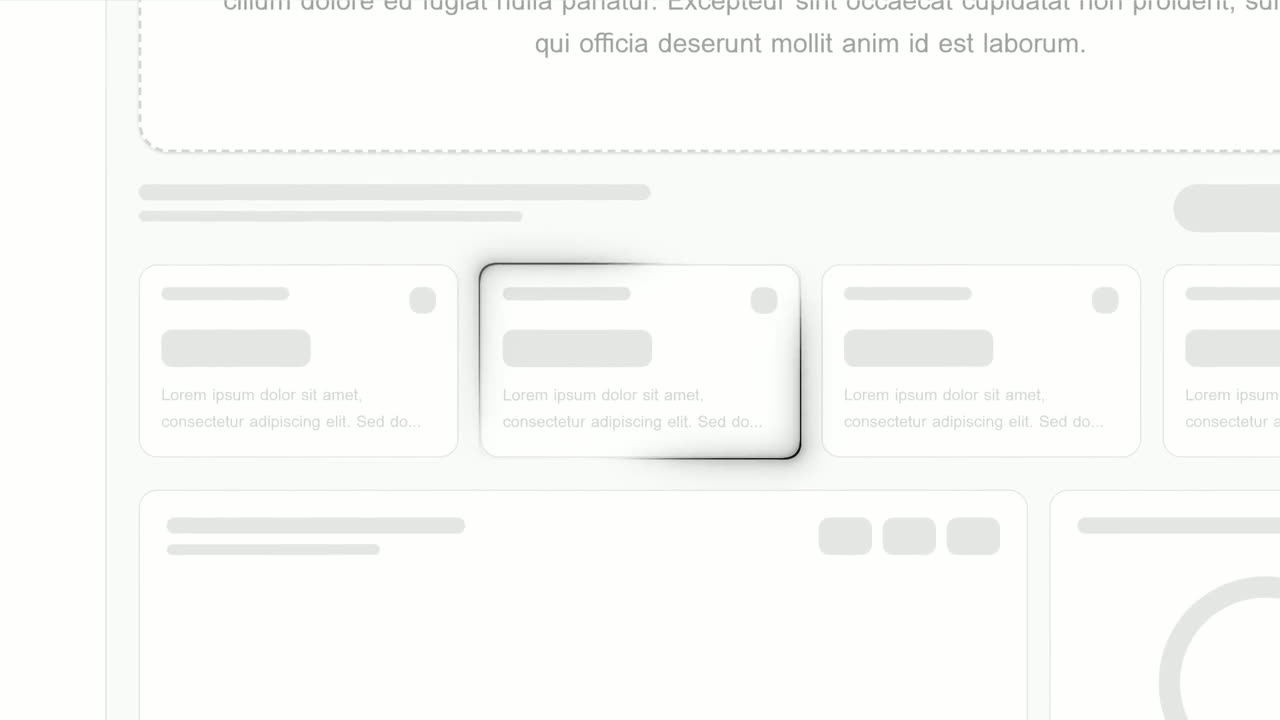
Feature · your real UI
Focus Outline
Focus Outline is a three-second scene where your real page is zoomed in and a glowing outline draws itself around one component.
Feature
Avatar Stat Line
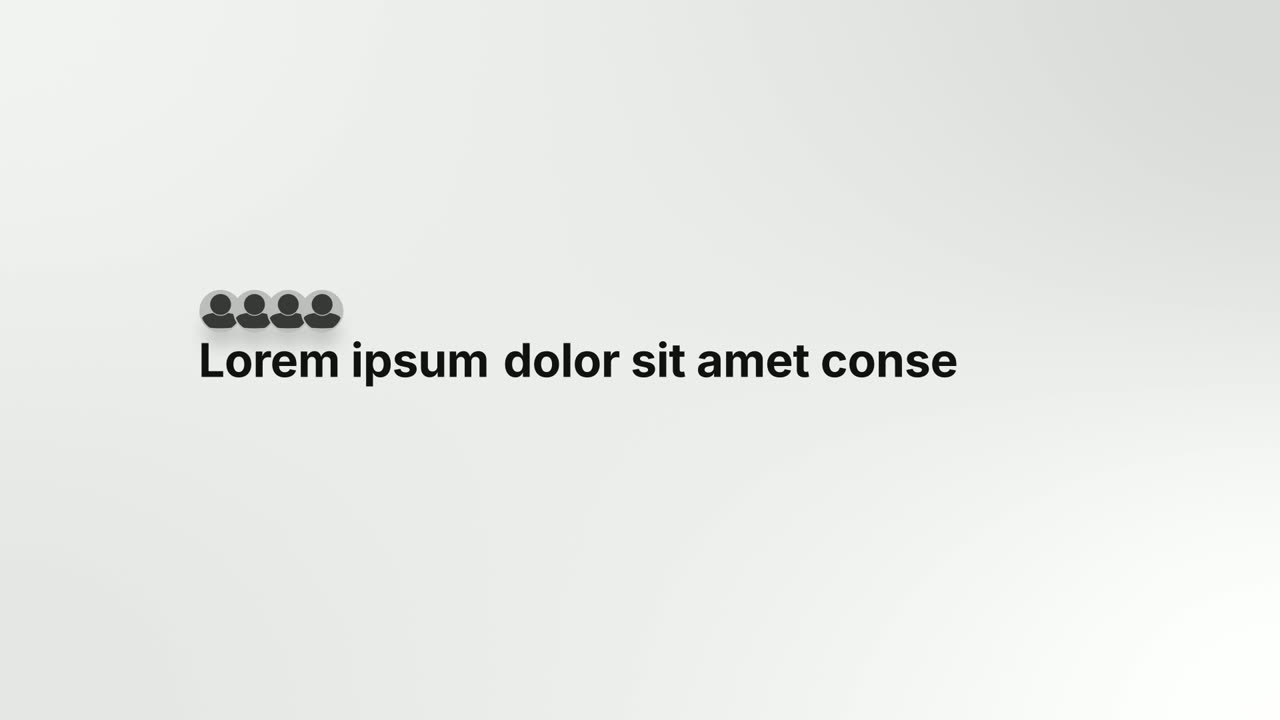
Avatar Stat Line is a three-second scene that builds one short claim about people: a stack of up to five overlapping avatar photos sits above the…
Feature
Close the Tabs
Close the Tabs is a three-second scene where a crowded browser tab strip, full of the tools your audience juggles, slides past and the tabs drop away…
Ending
Call to Action
Call to Action is a call to action end screen: your logo appears, then a button that a cursor clicks, telling the viewer exactly what to do next.
Questions
What are LinkedIn's video specs?
LinkedIn's help center lists up to 15 minutes and 5 GB per video, a minimum of 3 seconds on desktop, aspect ratios from 1:2.4 to 2.4:1 and 10 to 60 frames per second. Videos posted to LinkedIn Pages can run up to 10 minutes. Video ads accept 3 seconds to 30 minutes and up to 500 MB.
What is the best length for a LinkedIn product video?
For a product video in the feed, 20 to 45 seconds is a practical range: long enough to show one outcome in the real product, short enough to finish before people scroll on. Save longer walkthroughs for webinars, YouTube or your website.
Is 16:9 or square better for LinkedIn?
Square and vertical take more height in the mobile feed, while 16:9 suits desktop, video ads and reuse on X and your website. If you use 16:9, keep text large and favor close-ups so it reads on phones. Wevi exports landscape only, so it fits best when 16:9 is part of your plan.
Do LinkedIn videos autoplay with sound?
Not on first view. LinkedIn's help center says some videos may play automatically without sound as you scroll, and members can turn autoplay off in their settings. Design the video so the message is clear on mute.
How do I add captions to a LinkedIn or X video?
On LinkedIn, upload the video from desktop, click Edit on the preview and attach an SRT file with Select caption. On X, choose Upload caption file (.srt) under the video before posting. Write the SRT from your narration script so the captions match it word for word.
How long can a video be on X?
Accounts without X Premium can upload videos up to 140 seconds and 512 MB, and Premium subscribers can upload much longer videos. A 20 to 45 second product video fits either way.
Related guides
SaaS promo video
A punchy promo for ads, social and email, built from your product.
Read the guideProduct launch video
The 30 to 45 second video for launch day: what it is, who it is for, why now.
Read the guideFunding announcement video
Pair the funding news with what customers get from it.
Read the guide