Cursor Connect: a workflow automation animation using your real interface
Cursor Connect is a four-second scene where two real pieces of your product sit side by side and a cursor drags a line from the first to the second. It makes cause and effect visible, which suits stories about automation, integrations and workflows, and the hand-drawn line also says that setting it up is easy.
The preview shows placeholder content. Your video uses your UI, words, logo and colors.
- Role
- Feature
- Length
- 4 seconds
- Uses
- Your real product UI
- Format
- 16:9, up to 4K
What it looks like
Two windows captured from your product float next to each other, each clearly different from the other. A cursor moves to the first one and drags a line across the gap to the second, where it connects. That is the whole scene: one connection, drawn by hand. It feels logical, clear and a little satisfying, like watching a trigger get wired to the action it sets off.
It sits in the middle of the video where you explain how things link up, and it feels logical and quietly satisfying.
Best for
- Showing a trigger and the action it sets off
- Connecting a data source to what gets built from it
- Illustrating two features that stay in sync
- Showing a hand-off from one step or one team to the next
What you add
- A page of your product that shows both ends of a flow on one screen
- Two components from that page: the starting point first, then the result
Capture tips
- Open a page that shows both ends of the flow on one screen, then zoom in until both components are large and fully visible.
- Select the starting point first and the result second, because the line is drawn from the first to the second.
- Pick two whole cards, panels or widgets of a similar size that look clearly different from each other.
- Avoid bare text, tiny icons or tags, overlapping or nested picks, and full-width sections.
Videos this scene works in
Integration announcement video
Announce a new integration with both logos and the workflow it unlocks.
Read the guideProduct demo video
Show the product working, step by step, in your real interface.
Read the guideSaaS explainer video
Problem, solution, proof. Explain what your software does in under a minute.
Read the guidePairs well with
Feature
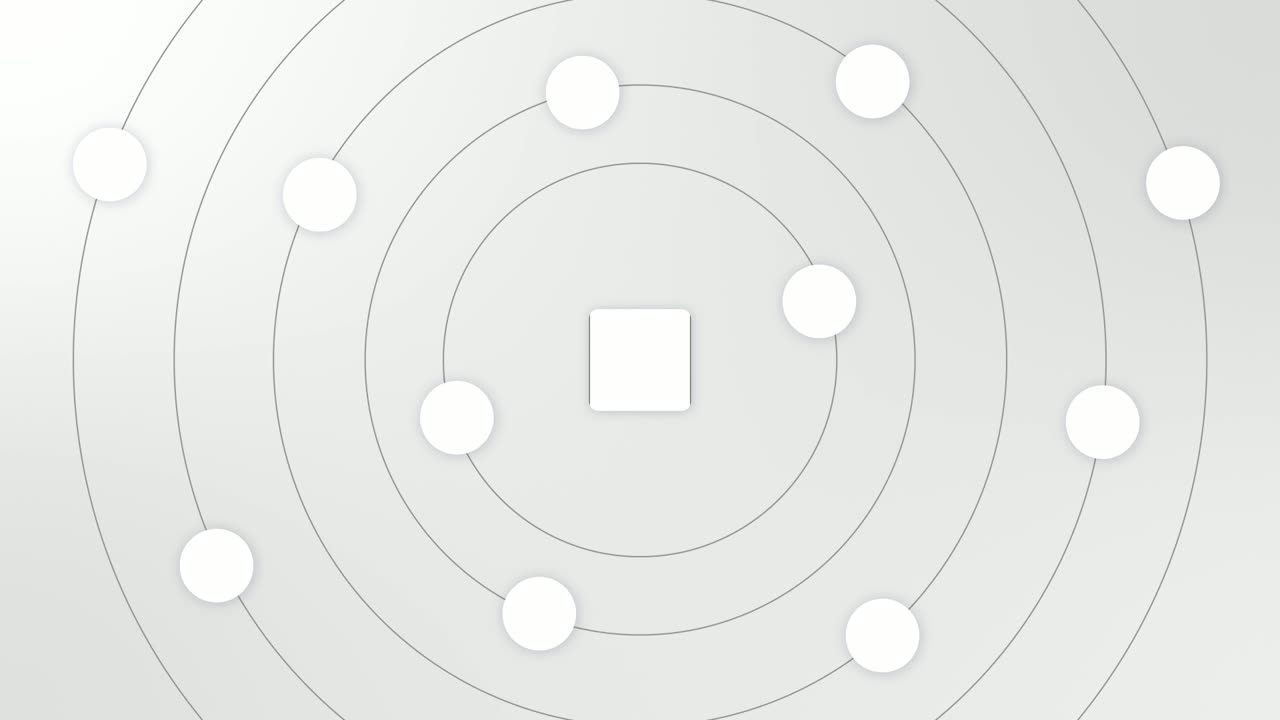
Integration Orbit
Integration Orbit is a five-second scene where your brand logo sits in the middle while up to eleven other logos circle it on rings.
Feature · your real UI
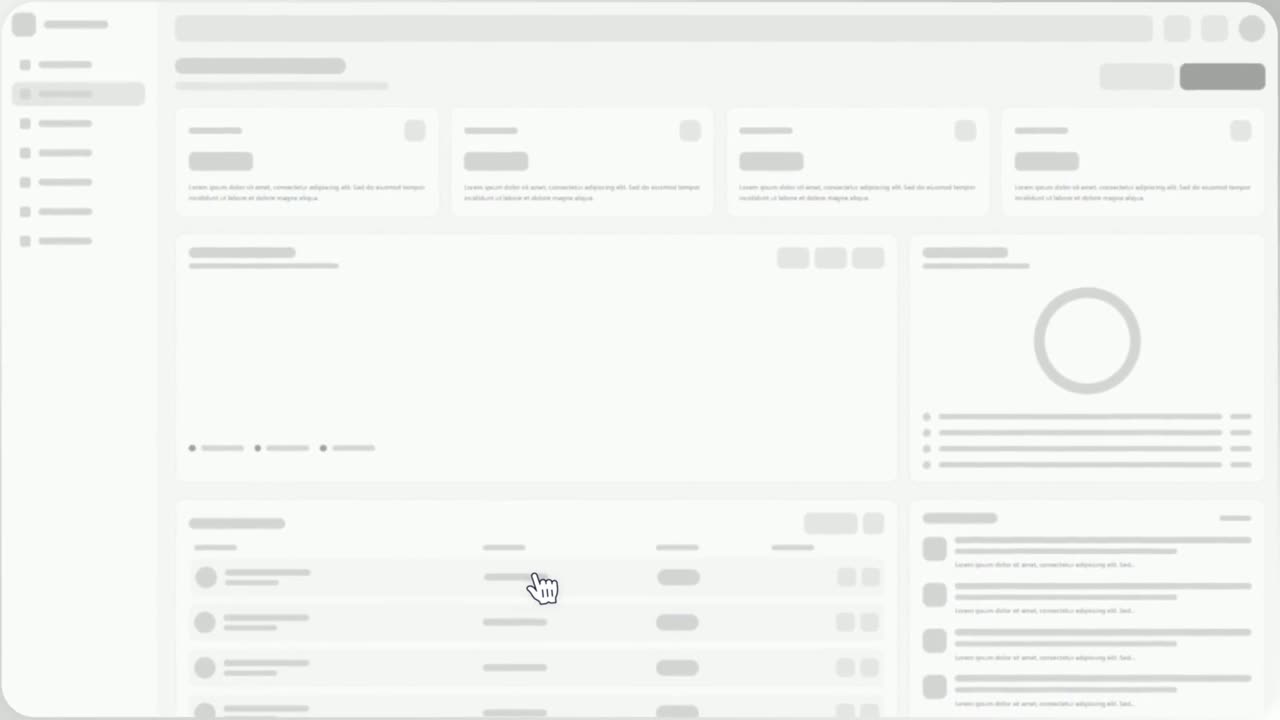
Drag-and-Drop
Drag-and-Drop is a three-second scene where a cursor picks up one real component from your product, drags it across the page and drops it into its…
Feature · your real UI
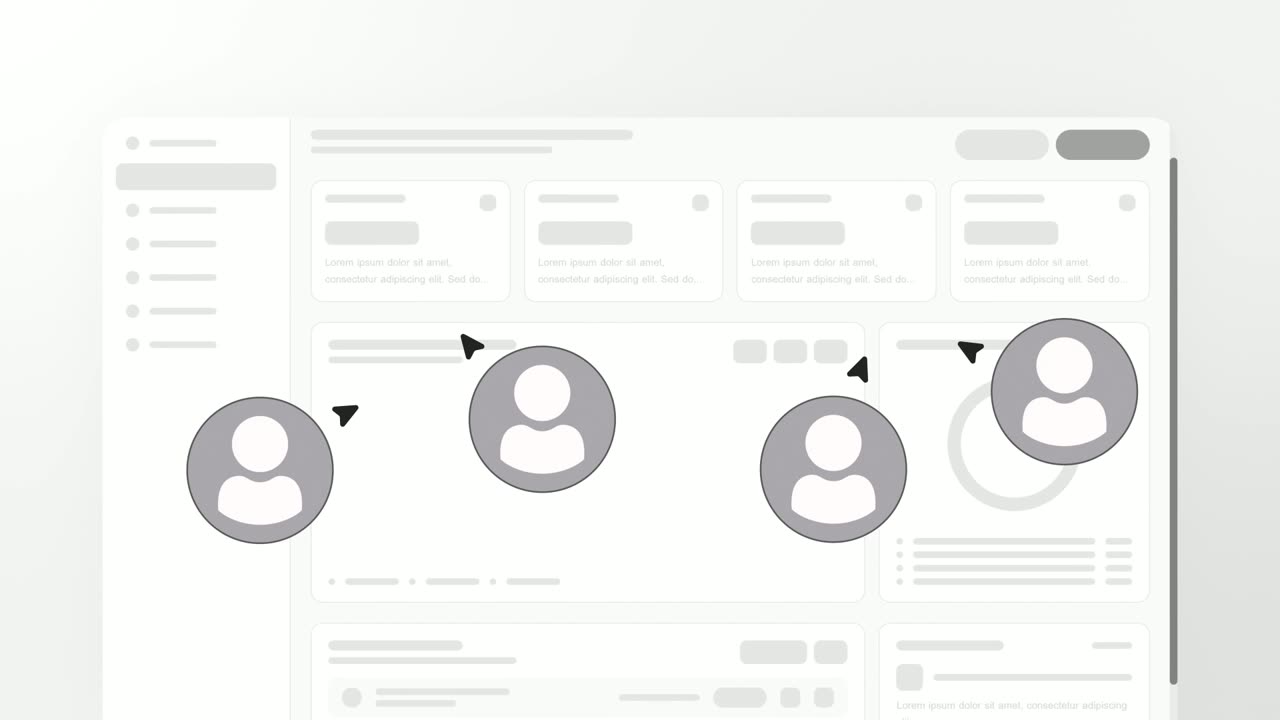
User Connection
User Connection is a team collaboration animation: your real product page sits in a window while four people appear around it as avatars with moving…
Questions
How many connections can Cursor Connect show?
One per scene. If your workflow has several links, give the most important one this scene and show the rest elsewhere.
Why should the two components look different?
The viewer needs to tell them apart at a glance. Two windows that look alike make the connection hard to follow.
What kind of voiceover fits it?
A line about one thing leading to another, such as an event that sets off an action automatically, or connecting the tools a team already uses.
Put Cursor Connect in your next video
Describe the video in a sentence. The Wevi Agent reads your site, captures your product, plans the scenes and renders with voiceover and music. Start free.
Or ask your assistant: Make a launch video for mysite.com with Wevi and open on the Cursor Connect scene