The shape of every good AI demo: ask, work, result, act
AI products are hard to show because the interesting part happens where nobody can see it. A demo that says AI-powered over a dashboard gives the viewer nothing to judge. The fix is to make the invisible steps visible, in order:
- Ask. Show the exact request typed into your real prompt box, search bar or chat. Without the input, the output means nothing.
- Work. Give the wait a few seconds and a status line that names what is happening, such as checking orders against carrier scans. It tells viewers real work is being done.
- Result. Show an output people can read: a list of changes, a drafted reply, a filled table, a number that moved.
- Act. Show what the user does with it: approve, send, publish, export. That is the moment the AI turns into value.
One task taken through all four steps is worth more than five prompts shown halfway. If you want to show range, do it in a single quick scene before or after the main task, not instead of it.
Choose the prompt your buyer would actually type
The prompt is the hook of an AI demo, so write it in your buyer's words, not your team's. Pull candidates from real usage: support tickets, onboarding calls, the first prompts new users type. The best demo prompt is specific, common and a little painful, something the viewer did by hand last week.
- Specific over clever. Find orders stuck in fulfillment and fix them is clearer than Optimize my store.
- Use realistic data. Run the demo on a workspace with plausible names, numbers and history. Empty or placeholder data makes the output look fake.
- Keep it to one line. Long prompts are hard to read on screen and suggest the product needs careful prompting.
- Match the result to the promise. If the voiceover says it saves an afternoon, the output should visibly be an afternoon of work.
If your product handles many kinds of requests, show the main task in depth, then add one quick scene where the request changes several times to hint at the range.
Keep it honest: real output, real speed, real limits
Viewers have seen enough staged AI demos to be suspicious, and buyers who try your product after a misleading video leave quickly. Credibility is the main thing an AI demo has to earn.
- Use real output. Copy the result from an actual run of your product, not text your marketing team wrote. Run the prompt several times and pick a typical result, not the luckiest one.
- Trim waits, and say so. Cutting a long generation down to a three-second loading moment is normal editing. If speed is part of your pitch, add a small on-screen note that the wait was shortened.
- Show the human step. If a person reviews or approves the work, show that click. It makes the product look safer, not weaker.
- Show what changed. A list of actions with before and after values is more convincing than a summary sentence.
- Only claim measured numbers. If you have not measured time saved, leave the number out and let the output speak.
Match the scenes to the kind of AI product
Different AI products need different pictures. Pick scenes that match how your users actually experience the AI:
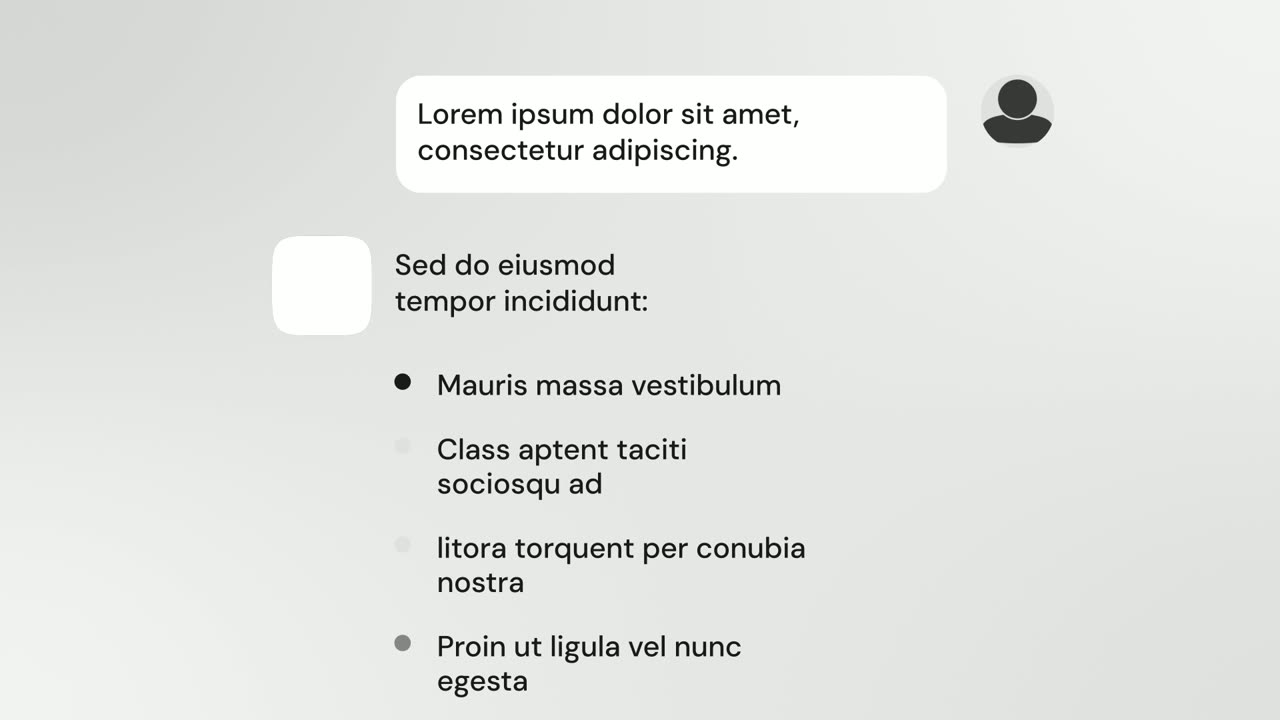
- Chat assistants and copilots. Show one request and one streamed answer with AI Chat Reply, or a short back and forth between customers and your brand with Chat Conversation.
- AI that takes actions. Show the task list completing itself with AI Checklist, with before and after values and a status that flips to done. Cursor Connect shows a trigger and the action it sets off.
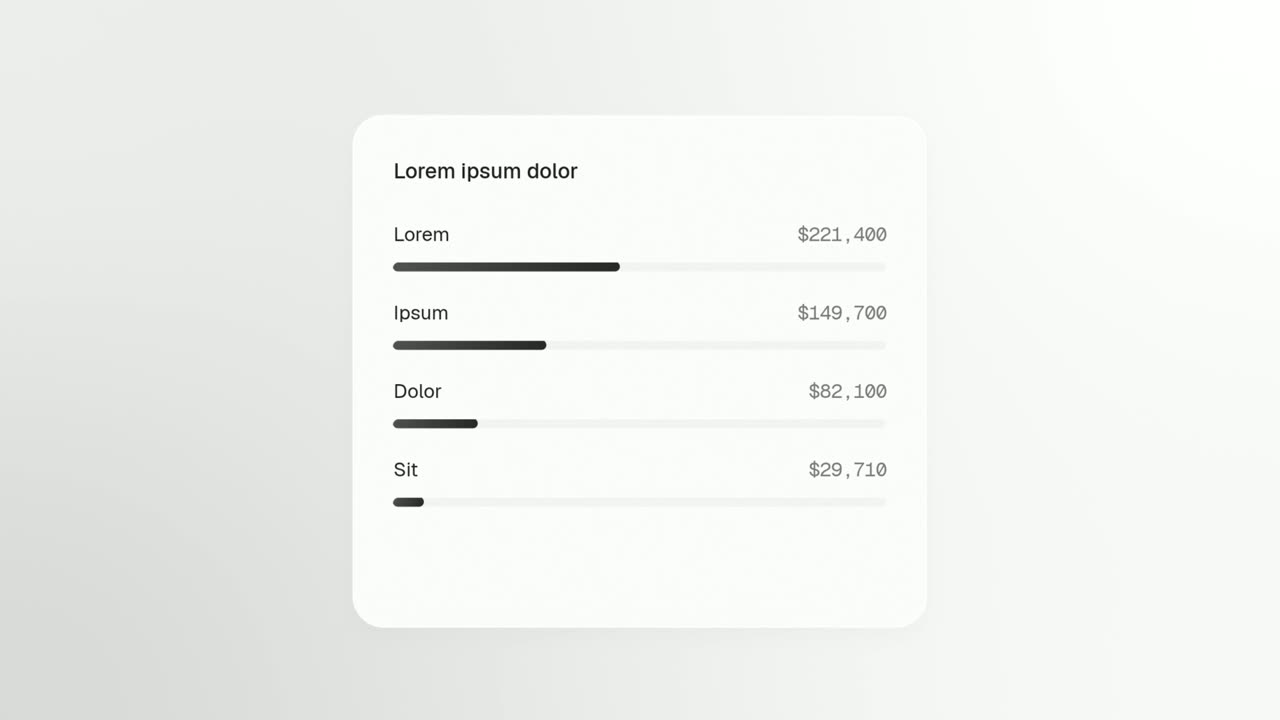
- Generators of documents, reports or dashboards. Follow the prompt with Text Glow Loading State, then let the result build with Window Rise or Rise & Reveal.
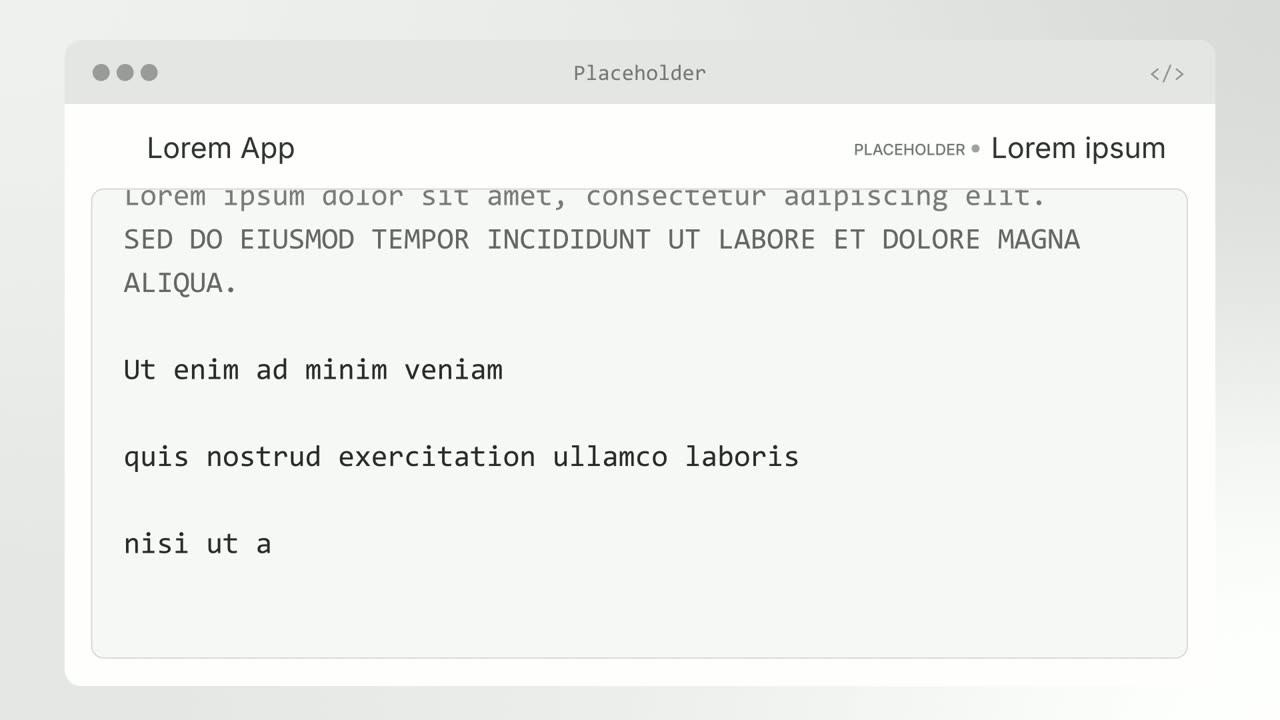
- Developer tools, CLIs and MCP servers. Single Command Line shows the install, Agent Terminal shows real output streaming back, and Switch On shows a connector being enabled inside an AI assistant.
Whatever the type, open with the problem in human terms before any AI appears. The prompt lands harder when the viewer already feels the task it replaces.
A 29-second demo for a sample AI operations assistant, scene by scene
Every scene below is a real Wevi template; open one to see it move. The narration runs at a natural pace of about 2.4 words a second, so it fits the scene.
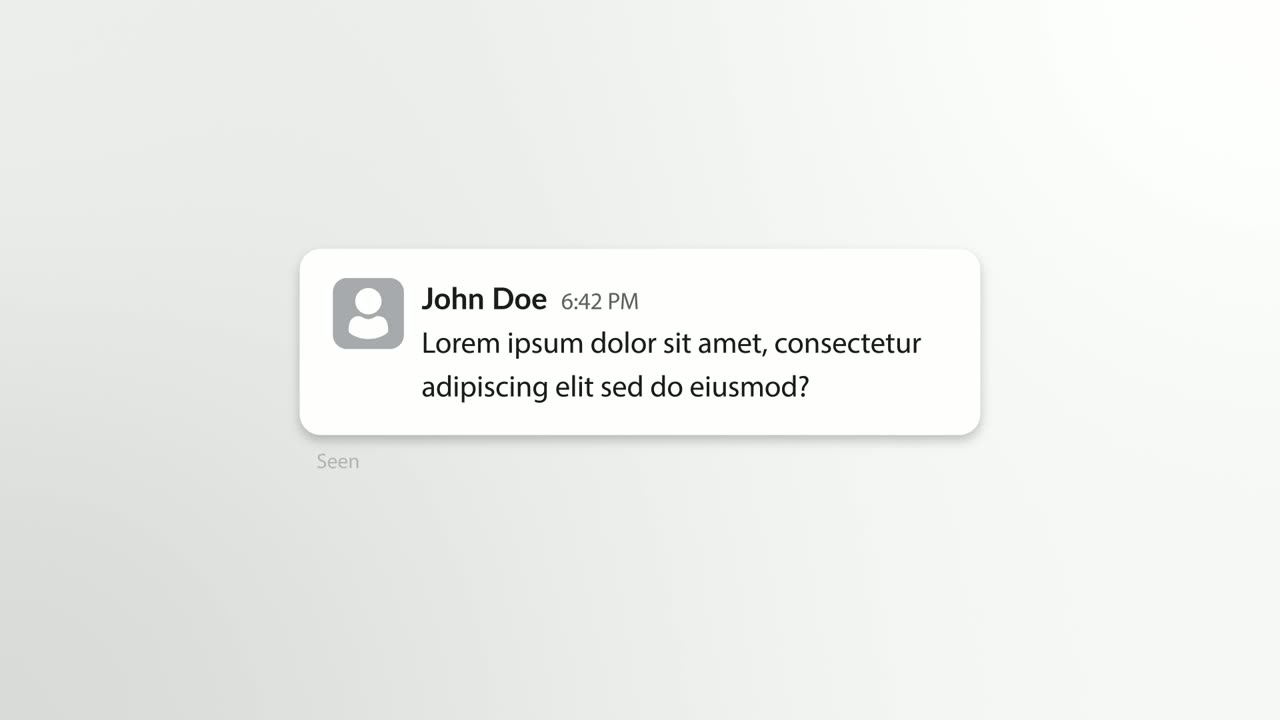
01Problem0-4 sec
Typing dots, then a customer message types into a chat bubble with their avatar beside it: It has been nine days, where is my order?
“Every week, stuck orders turn into messages like this.”
Template: Chat Bubble. Alternatives: Notification Pop, Word to Sentence Typing.
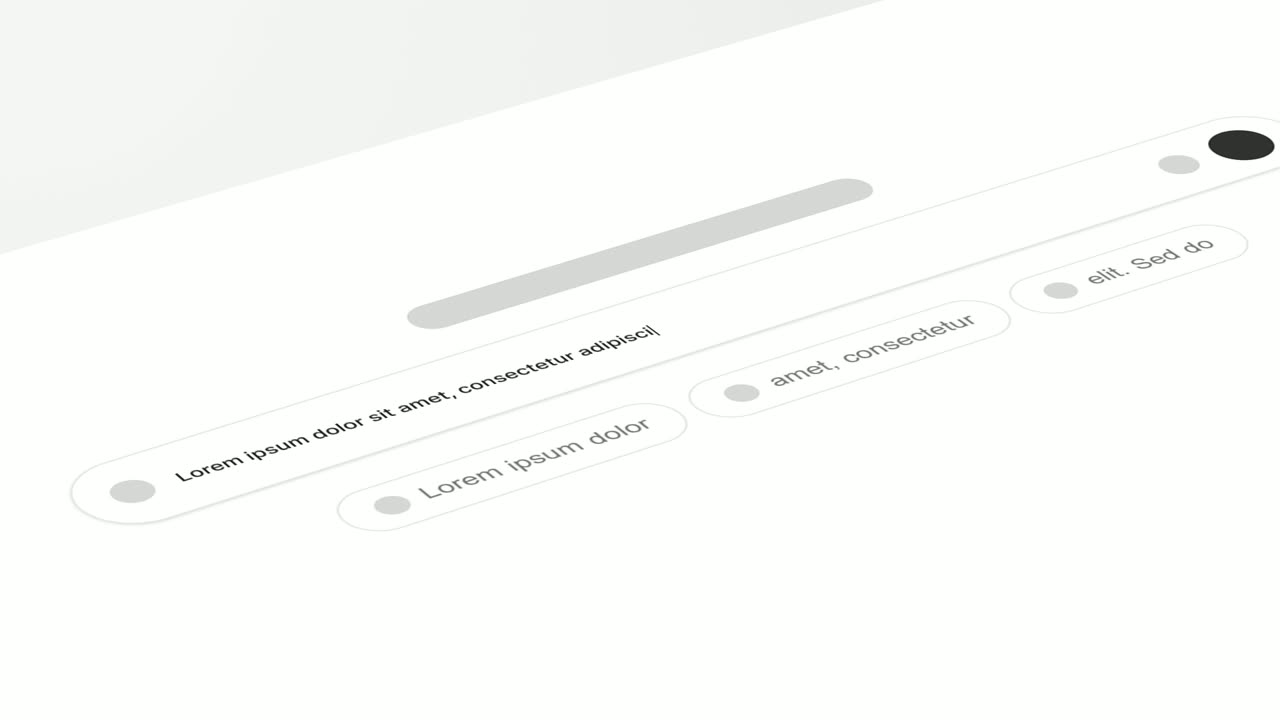
02Ask4-9 sec
The real Copperleaf workspace lies tilted in 3D as the camera glides along its prompt field while the request types in: Find every order stuck in fulfillment and fix it.
“So you ask Copperleaf to find and fix them.”
Template: Tilted Type-In. Alternatives: Prompt Input, Text Typing In.
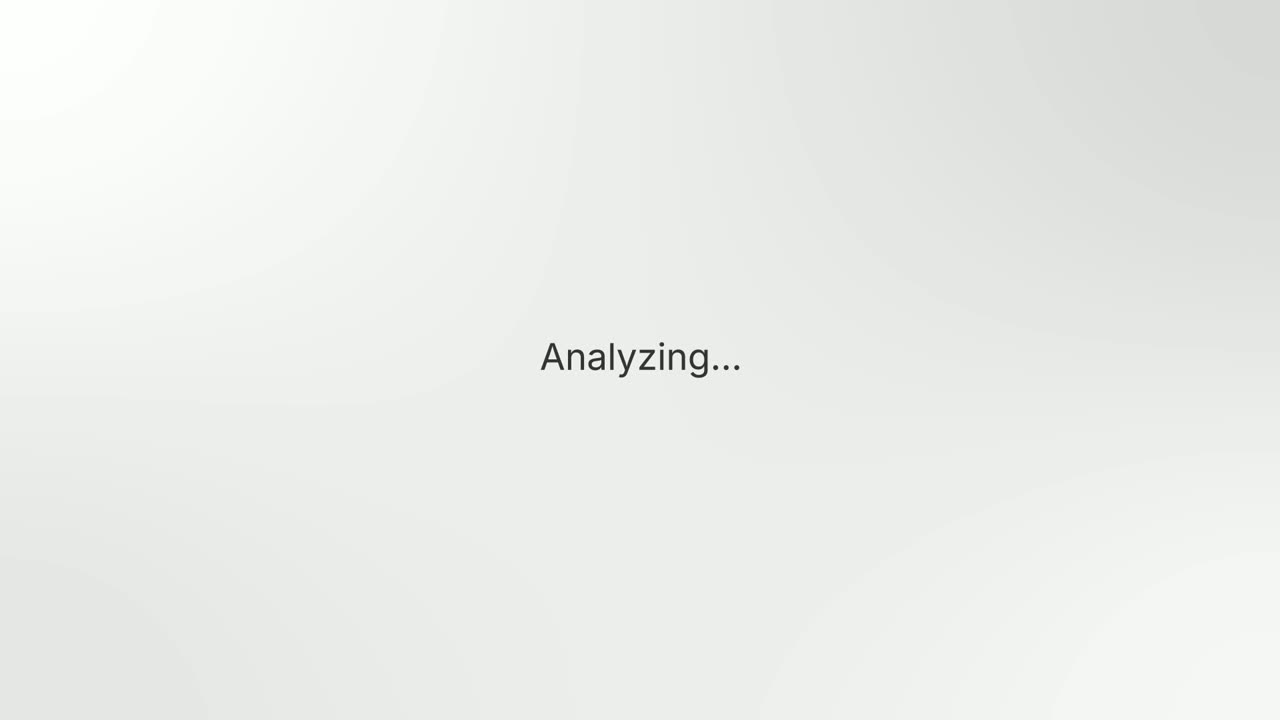
03Work9-12 sec
One glowing status line pulses on a quiet background: Checking 1,240 orders against carrier scans.
“It checks every order against carrier scans.”
Template: Text Glow Loading State. Alternatives: Loading Dots.
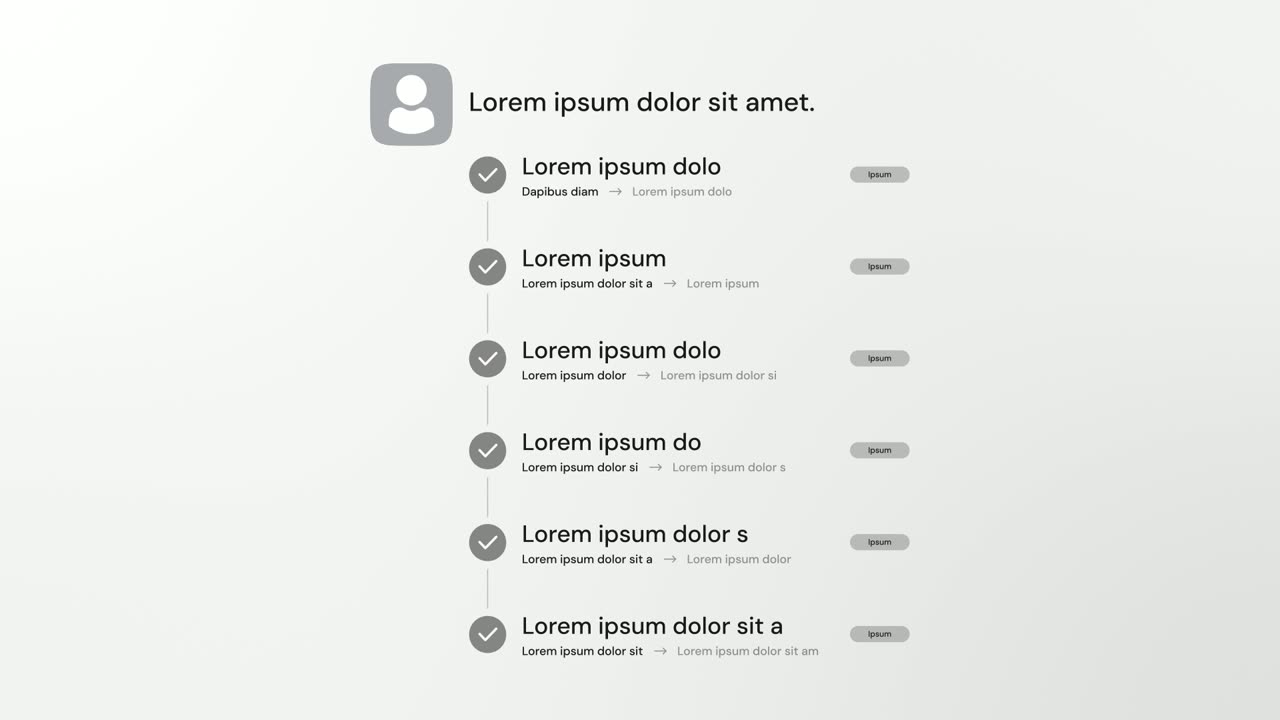
04Result12-17 sec
The Copperleaf logo and a one-line reply, then rows build underneath with check marks and before and after values, Address corrected, Carrier rebooked, Refund drafted, each status pill flipping to Done.
“It fixes what it can and shows every change.”
Template: AI Checklist. Alternatives: AI Chat Reply, Window Rise.

05Approve17-22 sec
The real review page appears in 3D, then its Approve all button lifts out, floats alone in the center and a cursor clicks it.
“You review the refunds and approve them in one click.”
Template: Floating Button Press. Alternatives: Cursor Press.
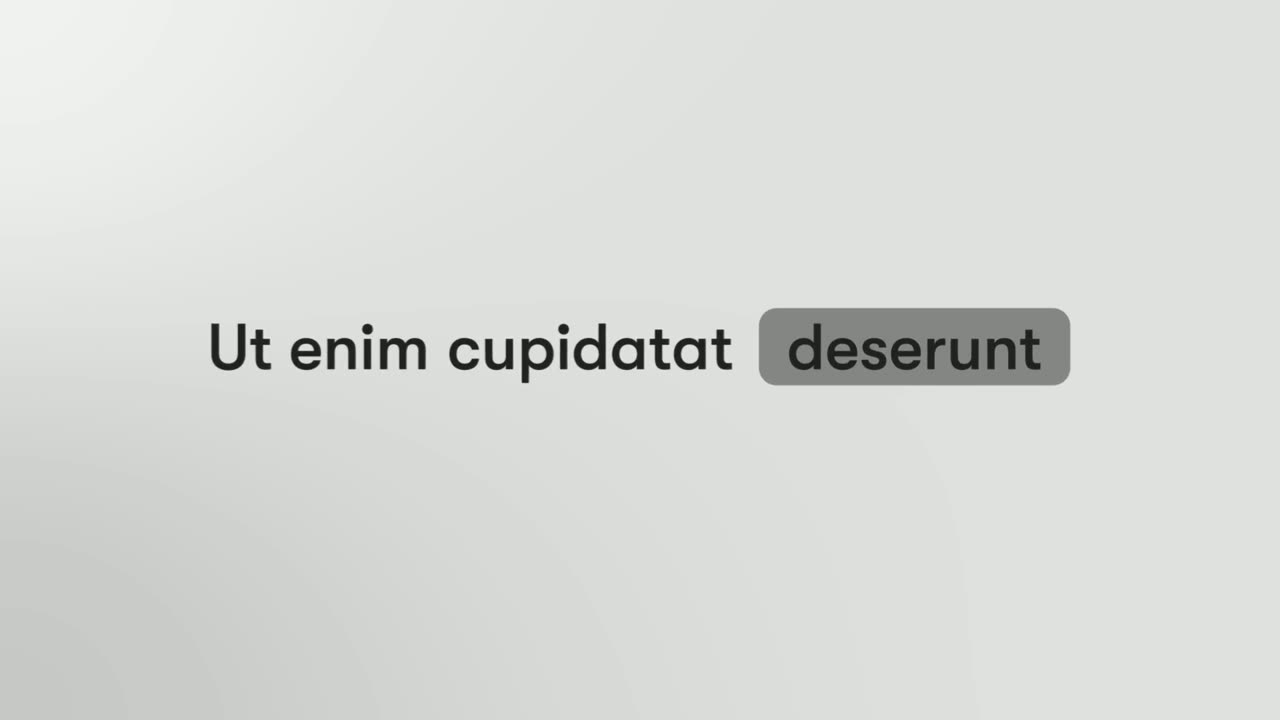
06Payoff22-24 sec
A short line with one word inside a status badge: 18 orders Resolved.
“Eighteen orders, resolved.”
Template: Spotlight Text Block. Alternatives: Vertical Label Pop-In.
07Call to action24-29 sec
The Copperleaf logo appears, then a Connect your store button that a cursor clicks.
“Connect your store and try Copperleaf free.”
Template: Call to Action. Alternatives: Logo Morph.
Checklist
- One task shown end to end: ask, work, result, act
- The prompt is one line, in words a real user would type
- Output is copied from a real run and chosen as typical, not best
- The wait lasts three to five seconds with a status line naming the work
- Shortened waits or edited output are disclosed on screen
- The result is readable: a list, a draft, a table or a changed number
- Any human review or approval step is shown
- The demo workspace uses realistic data with nothing private on screen
- Claims about time or money saved are measured, or left out
- The video ends on one action: try it, connect it or install it
Mistakes to avoid
- Showing the AI think in real time
- Twenty seconds of a spinner kills the pace. Cut to a short loading scene that names the work, then straight to the result.
- Cherry-picking the perfect run
- AI output varies from run to run. If the demo shows the best case, a buyer's first real try disappoints, so show a typical result.
- Hiding the prompt
- Viewers cannot judge an answer without seeing the question. Put the exact request on screen.
- Saying AI-powered instead of showing the work
- The label proves nothing. A list of concrete changes with before and after values proves a lot.
- Implying more autonomy than the product has
- If a person approves the work, show it. Overstating autonomy backfires the moment a buyer tries the product.
- Ten prompts in thirty seconds
- A montage of requests shows range but no depth. Take one task all the way through, then hint at range in one quick scene.
How to make it with Wevi
Add your website
Paste your URL and Wevi pulls your logo, brand colors and fonts, so the AI scenes look like your product rather than a generic chatbot.
Plan with the Wevi Agent or pick scenes
Describe the task your AI handles and the Wevi Agent drafts the scenes, on-screen copy and narration. Or build it yourself from Prompt Input, Text Glow Loading State, AI Checklist, AI Chat Reply and Agent Terminal, which need no capture: you type in real output from your product.
Capture your real prompt and results screens
Wevi opens your app in a real browser and lifts out the prompt box, chat thread or results panel you choose. You sign in yourself for anything behind your login; Wevi never asks for your password.
Render with voiceover and music
Pick an AI voice from Wevi's library and a music track, then export a 16:9 MP4 at up to 4K depending on your plan. Fitting for an AI product, you can also ask Claude or ChatGPT to make the whole demo in one step through Wevi's MCP connector, set up at wevi.ai/mcp.
Templates for this video
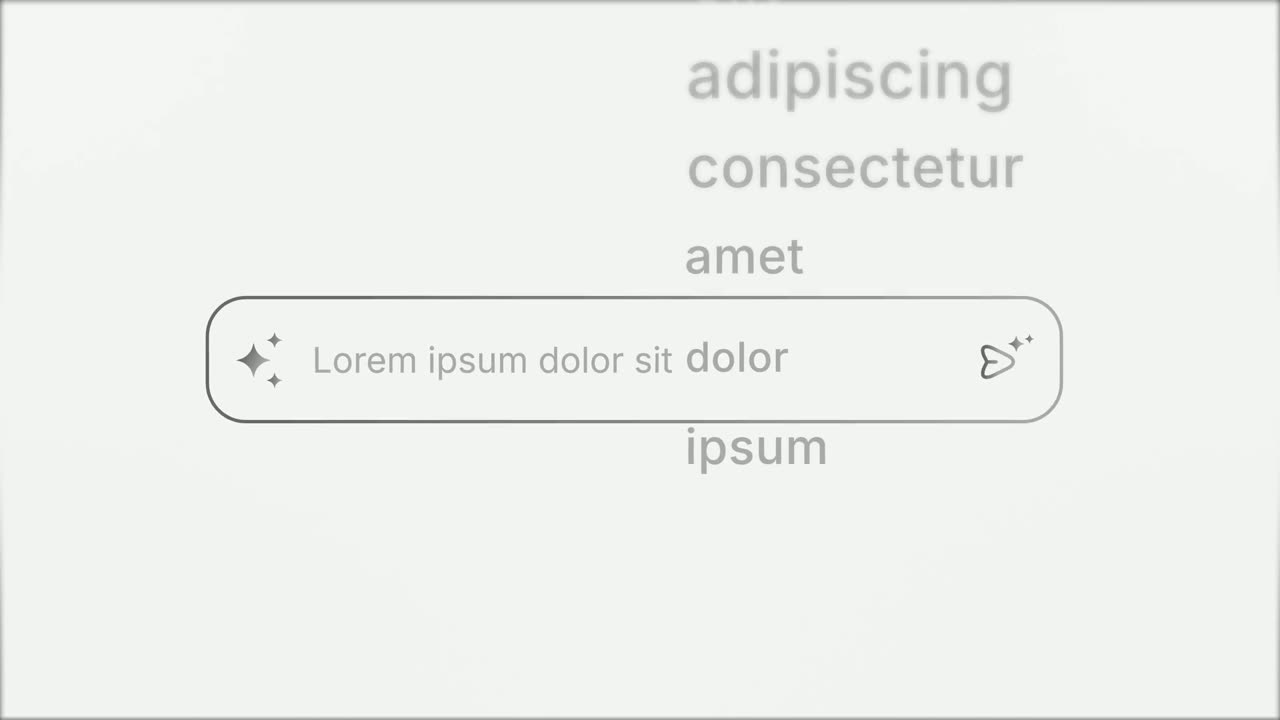
Opener
Prompt Input
Prompt Input is a 5-second scene where an icon opens into a prompt box, a request types itself in close up, then the shot goes wide and the end of…
Feature
AI Chat Reply
AI Chat Reply is a five-second scene where a customer's message sits at the top, your logo appears, and your AI's reply streams in with a heading, up…
Feature
AI Checklist
AI Checklist is a five-second scene in which your logo and a one-line reply sit at the top while up to six rows build underneath, each with a check…
Feature
Agent Terminal
Agent Terminal is a three-second scene in which a command types at a terminal prompt and output streams back: a tool line full of numbers, a headline…
Feature
Text Glow Loading State
Text Glow Loading State is a loading text animation: one short status line glows and pulses on a quiet background, filling the wait between an action…
Feature · your real UI
Window Rise
Window Rise is an app window animation where one real card, panel or chat window from your product floats alone and fills itself in.
Questions
How long should an AI product demo video be?
For a homepage, launch post or social feed, 30 to 45 seconds is enough to show one task from prompt to result. Longer walkthroughs of several workflows suit sales calls and docs, but they are a different video. Wevi is built for the 15 to 45 second version.
Is it OK to speed up the AI response in a demo video?
Yes, trimming waits is normal editing as long as the result is real. Keep a short loading moment so viewers understand work is happening. If speed is part of your pitch, add a note that the wait was shortened.
How do I show an AI agent that works in the background?
Show the trigger, the status and the outcome. A notification or a message can start the story, a checklist of completed actions shows the work, and an approval click shows where people stay in control. For developer tools, terminal output streaming back is the most credible picture.
Can I make an AI demo video before the UI is finished?
Partly. Wevi's Prompt Input, AI Chat Reply, AI Checklist, Agent Terminal and Chat Bubble scenes are designed rather than captured, so you can fill them with real output from your model in your brand colors. Add captured scenes of the real interface once it is ready.
Can Wevi add an AI avatar or presenter to the demo?
No. Wevi does not generate people, characters or free-form AI video, and it cannot clone a voice. It animates your real product UI with motion templates and adds a voiceover from its voice library.
How do I demo an MCP server or developer tool?
Show how little it takes and what comes back. A single install command, real output streaming in a terminal, and the connector being switched on in an AI assistant tell the story in under 15 seconds. Wevi has Single Command Line, Agent Terminal and Switch On for exactly that.
Related guides
Product demo video
Show the product working, step by step, in your real interface.
Read the guideProduct launch video
The 30 to 45 second video for launch day: what it is, who it is for, why now.
Read the guideFeature announcement video
One new feature, shown in context, in 15 to 30 seconds.
Read the guide