Dropdown Menu: a dropdown menu animation using your product's real menu
Dropdown Menu is a 4-second scene where a cursor clicks a control on your real product page, its dropdown opens, and the cursor runs down the options before picking one. It shows both how many choices your product offers and the one that matters. It suits any feature where choosing is the point, such as switching workspaces, picking a plan, filtering, assigning or choosing a format.
The preview shows placeholder content. Your video uses your UI, words, logo and colors.
- Role
- Opener
- Length
- 4 seconds
- Uses
- Your real product UI
- Format
- 16:9, up to 4K
What it looks like
Your real product page appears as a window and the camera moves in on a button or field. A cursor clicks it and the dropdown opens. The cursor then glides down the list, and each option lights up as it passes, which shows the range of what is available. It settles on one row and clicks it. The camera frames the menu on its own, and the whole move takes about four seconds, ending on the chosen option.
It sits in the product part of the video, often early on, and it feels confident and plain.
Best for
- Showing how users switch between accounts, spaces or clients
- Highlighting a filter, sort or view option in a demo
- Presenting the range of plans, modes or formats in one move
- Explaining an assign or share step in a workflow
What you add
- A capture of your page with the dropdown already open
- The menu, the control that opens it and three to six of its rows
- One voiceover sentence of 8 to 11 words
Capture tips
- Zoom the browser in as far as you can while everything you want in the shot still fits on screen. A bigger capture stays sharper in the video.
- Open the dropdown before you capture. With the menu closed there is nothing to pick.
- Make sure the whole menu is on screen, not cut off at an edge.
- Pick the whole open menu first, then the button that opens it, then each row on its own. Three to six rows read best.
Videos this scene works in
Product demo video
Show the product working, step by step, in your real interface.
Read the guideFeature announcement video
One new feature, shown in context, in 15 to 30 seconds.
Read the guideRelease notes video
Turn a changelog or monthly update into a video people watch.
Read the guideSaaS explainer video
Problem, solution, proof. Explain what your software does in under a minute.
Read the guidePairs well with
Feature · your real UI
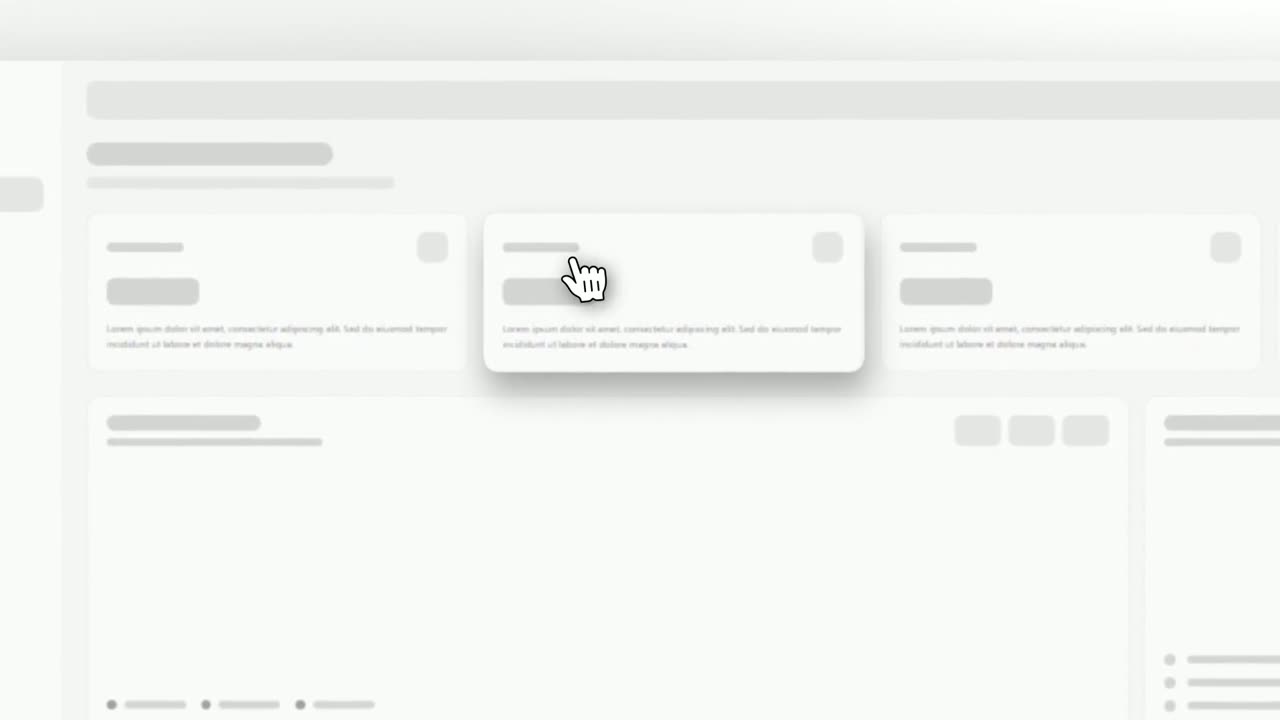
Cursor Select
Cursor Select is a five-second scene that opens on your whole product page, moves the camera in on one control, lifts it slightly and has a cursor…
Feature · your real UI
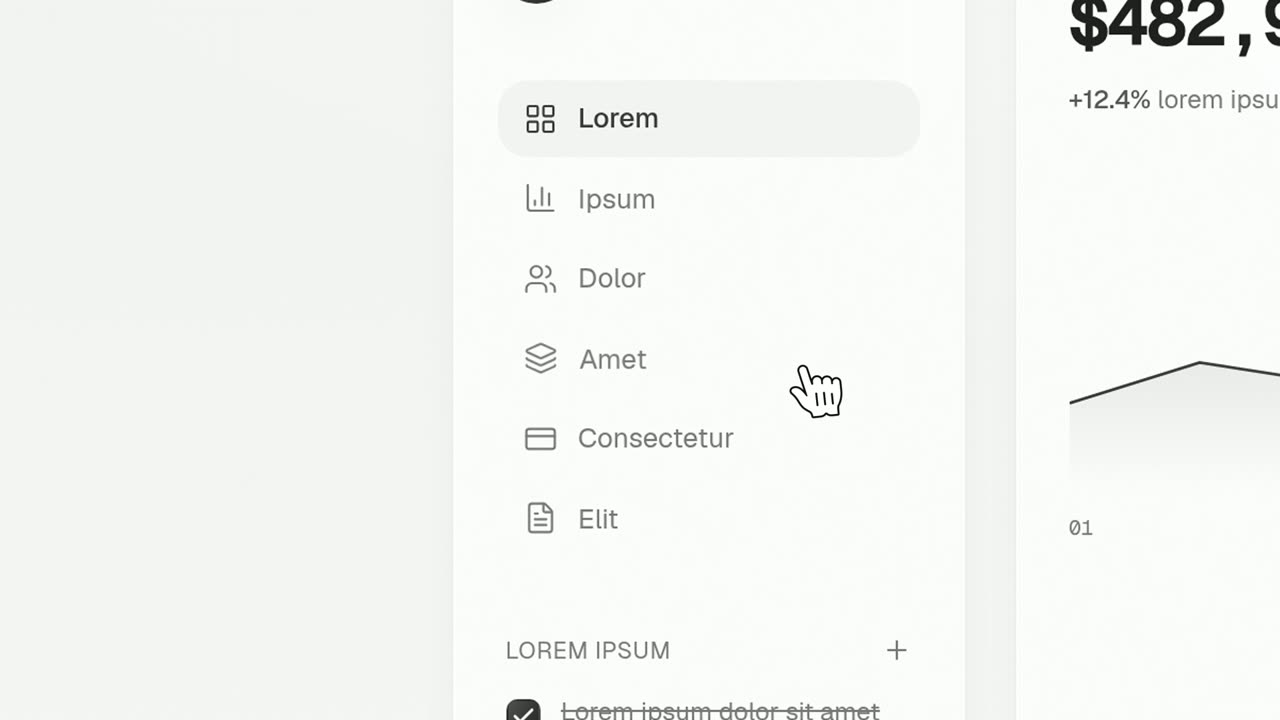
Cursor Press
Cursor Press is a three-second close-up where one real button or control from your product sits still and a cursor glides in and presses it.
Opener · your real UI
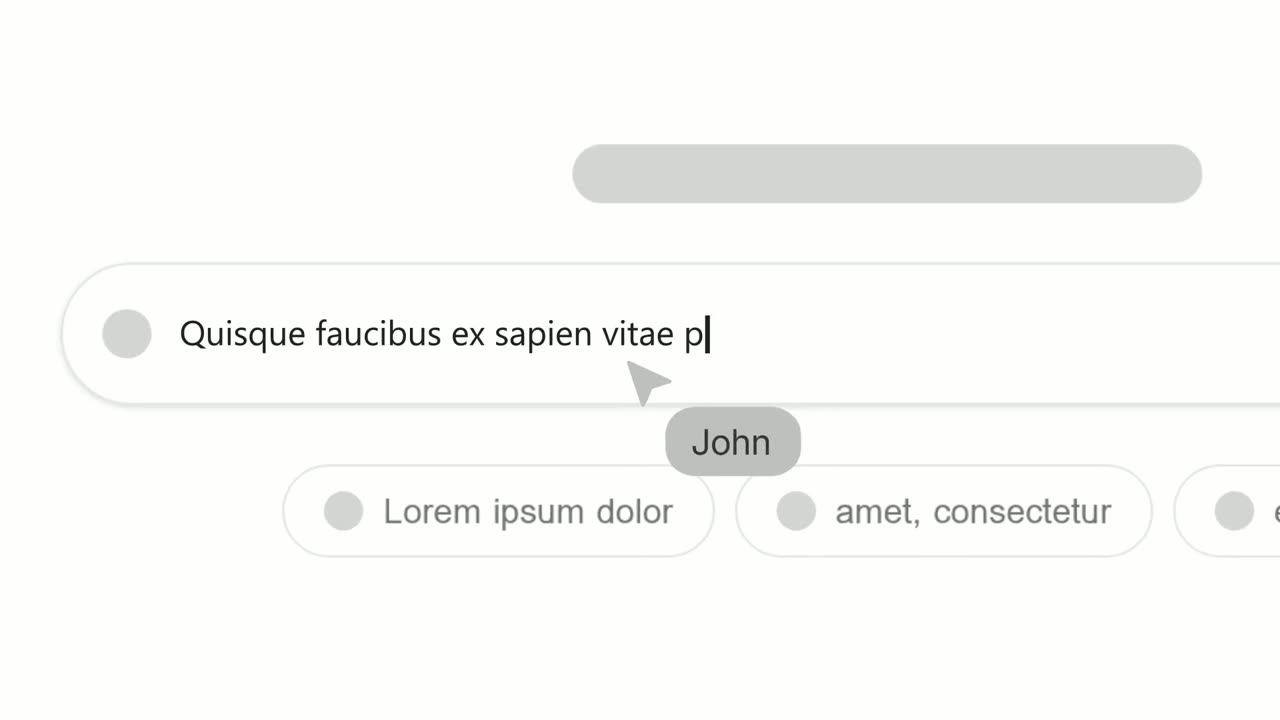
Text Typing In
Text Typing In is a 5-second scene where your real product page is on screen, a cursor clicks a field and the camera moves in while real text types…
Questions
Can it show several steps, like a menu and then a submenu?
No. Each Dropdown Menu scene is one menu and one choice. For a multi-step flow, give each step its own scene.
How many options can the menu show?
Up to 11 rows, though three to six read best on screen. Every row must come from the same open menu.
What should the voiceover say?
One sentence of about 8 to 11 words that sets up the need while the menu opens and says the chosen option as the click lands, at about 3.4 seconds. Do not narrate the cursor.
Put Dropdown Menu in your next video
Describe the video in a sentence. The Wevi Agent reads your site, captures your product, plans the scenes and renders with voiceover and music. Start free.
Or ask your assistant: Make a launch video for mysite.com with Wevi and open on the Dropdown Menu scene