Split & Type: an AI assistant animation that turns a click into a prompt
Split & Type is a five-second scene where a cursor clicks one real piece of your UI, which confirms with a soft lift and a blush of your brand color. Then its content splits apart and slides out, and the empty card closes into a wide prompt field where a request types in and is sent. It suits moments where choosing or connecting something leads straight into asking or doing something with it.
The preview shows placeholder content. Your video uses your UI, words, logo and colors.
- Role
- Feature
- Length
- 5 seconds
- Uses
- Your real product UI
- Format
- 16:9, up to 4K
What it looks like
One captured element, such as a card, a list row, a button or a tile, sits alone on screen. A cursor clicks it, and it lifts slightly with a blush of your brand color. Its content splits apart and slides out, the empty card closes into a wide prompt field, and your one-line request types in and is sent. It feels smooth and tactile, and turns a selection into an action.
It works as a feature moment or as the hand-off into an assistant or search scene, and it feels smooth and confident.
Best for
- Handing off from a selected item to an AI assistant
- Showing a search or command that starts from a real element
- Introducing a feature where picking something leads to an action
- Bridging into an assistant or search scene
What you add
- One element captured from your product
- One prompt line with a single request
Capture tips
- Open the page that shows the element the scene starts on, such as a card, a list row, a button or a tile.
- Leave it at rest, with no hover and no menu or tooltip open over it.
- Zoom the browser in far on the element so it fills most of the screen.
- Select the whole element out to its outer edge with its fill, border and padding. One selection only.
Videos this scene works in
Pairs well with
Opener
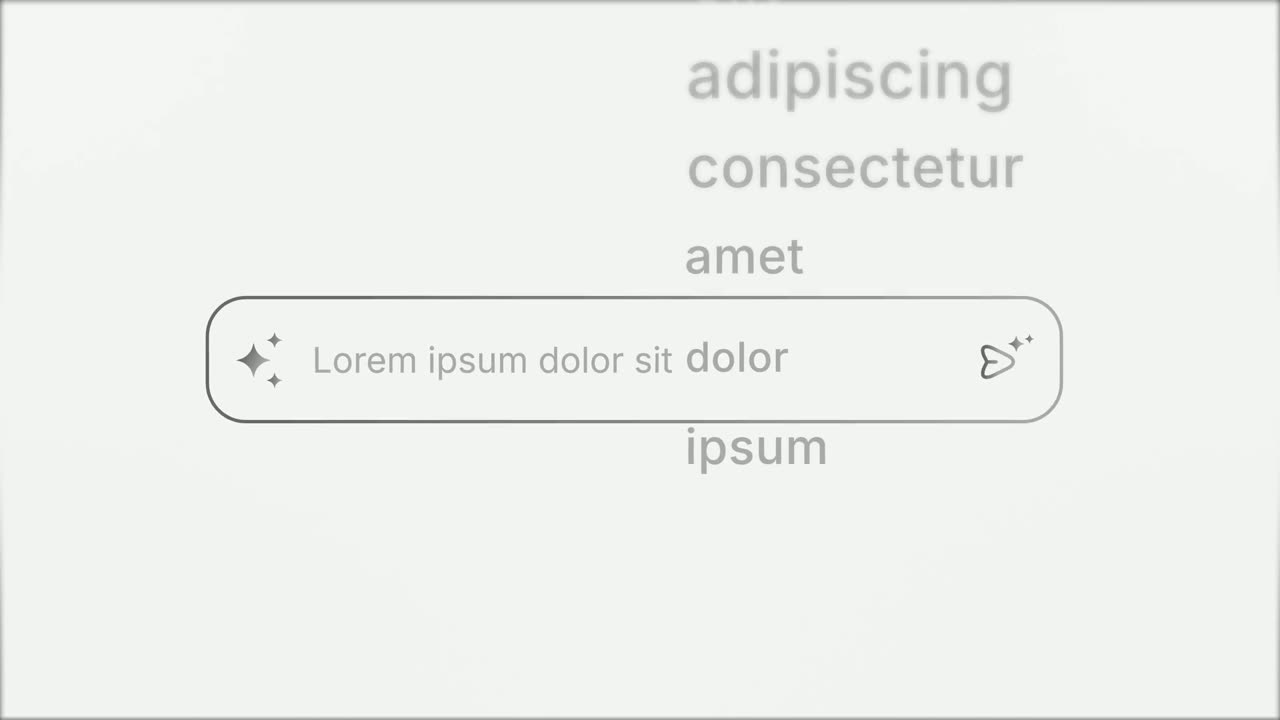
Prompt Input
Prompt Input is a 5-second scene where an icon opens into a prompt box, a request types itself in close up, then the shot goes wide and the end of…
Feature
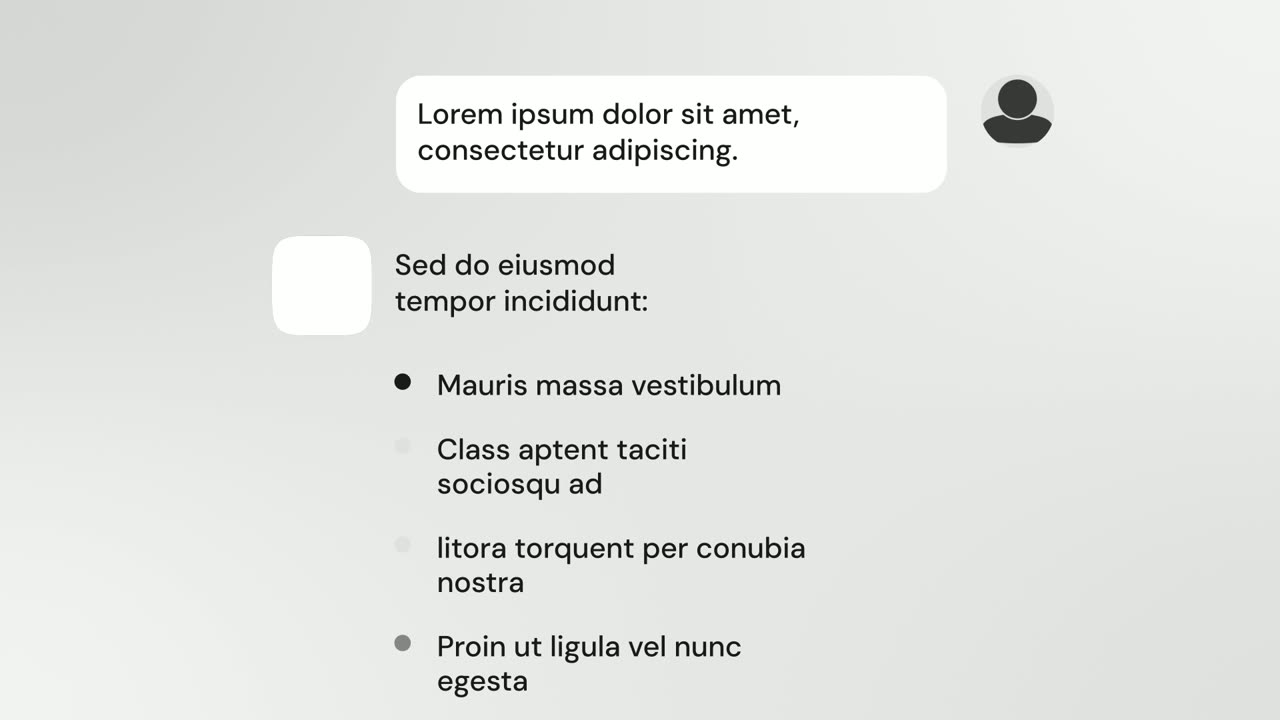
AI Chat Reply
AI Chat Reply is a five-second scene where a customer's message sits at the top, your logo appears, and your AI's reply streams in with a heading, up…
Feature · your real UI
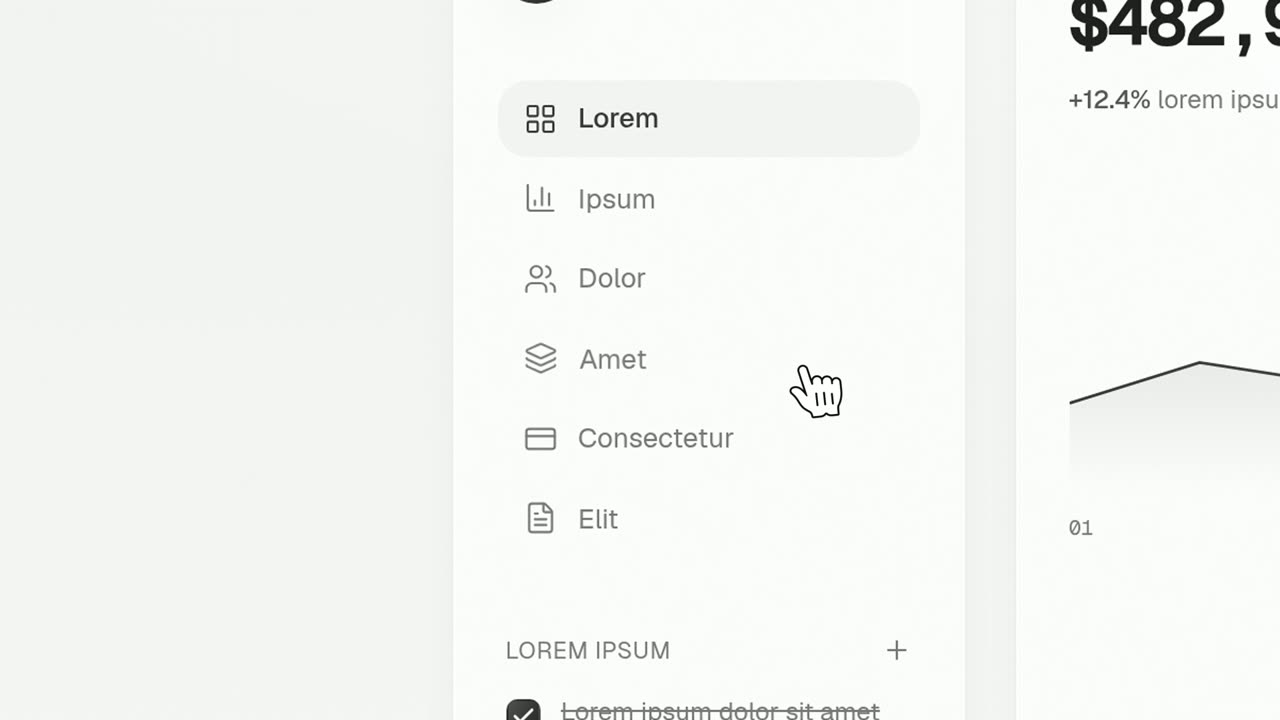
Cursor Press
Cursor Press is a three-second close-up where one real button or control from your product sits still and a cursor glides in and presses it.
Questions
How long can the prompt be?
One line with one request. Long sentences and lists do not fit the field, and the prompt should not repeat the voiceover word for word.
What should the voiceover say?
What choosing the element unlocks and what the user can now ask or do. Do not read the prompt out or describe the animation.
Can the capture be a whole page?
No. Pick one element, such as a card or a row. A whole page or a large section is too big for the scene.
Put Split & Type in your next video
Describe the video in a sentence. The Wevi Agent reads your site, captures your product, plans the scenes and renders with voiceover and music. Start free.
Or ask your assistant: Make a launch video for mysite.com with Wevi and open on the Split & Type scene