Cursor Comment: a multiplayer cursor animation with a live comment on your real UI
Cursor Comment is a two-second scene where a collaborator's cursor flies in, points at one real component on your product page and leaves a short comment in a bubble under it. It shows feedback landing on the exact thing it is about. It suits collaboration, review and design handoff products, and works as a quick human beat between product shots.
The preview shows placeholder content. Your video uses your UI, words, logo and colors.
- Role
- Feature
- Length
- 2 seconds
- Uses
- Your real product UI
- Format
- 16:9, up to 4K
What it looks like
Your real product page fills the frame, zoomed in around one component such as a button, a card, a heading or a form field. A cursor flies in and points at it, the component turns selected, and a comment finishes typing in a bubble just under the cursor. The comment is done within the first second, so the scene is over almost as soon as it is read. The page and the component stay exactly as they look in your product.
It sits in the product part of the video as a quick human beat between product shots, and it feels quick and personal.
Best for
- Showing a teammate leaving feedback on a real part of the product
- Explaining a review or approval flow in a design, docs or website tool
- Showing a handoff note landing on the right component
- Adding a human moment between two product shots
What you add
- One component captured from a real page of your product
- A comment of about eight words or fewer
Capture tips
- Open the page that holds the component, such as a landing page, a dashboard or a settings screen.
- Leave the page at rest, with no menu or popup open and the component in its normal state, not hovered.
- Zoom the browser in far on the area around the component so it fills most of the screen. A bigger capture gives the sharpest shot.
- Select the one component out to its outer edge with its fill and padding. Not just its text or icon, and not a whole page section.
Videos this scene works in
Product demo video
Show the product working, step by step, in your real interface.
Read the guideFeature announcement video
One new feature, shown in context, in 15 to 30 seconds.
Read the guideSaaS explainer video
Problem, solution, proof. Explain what your software does in under a minute.
Read the guidePairs well with
Feature · your real UI
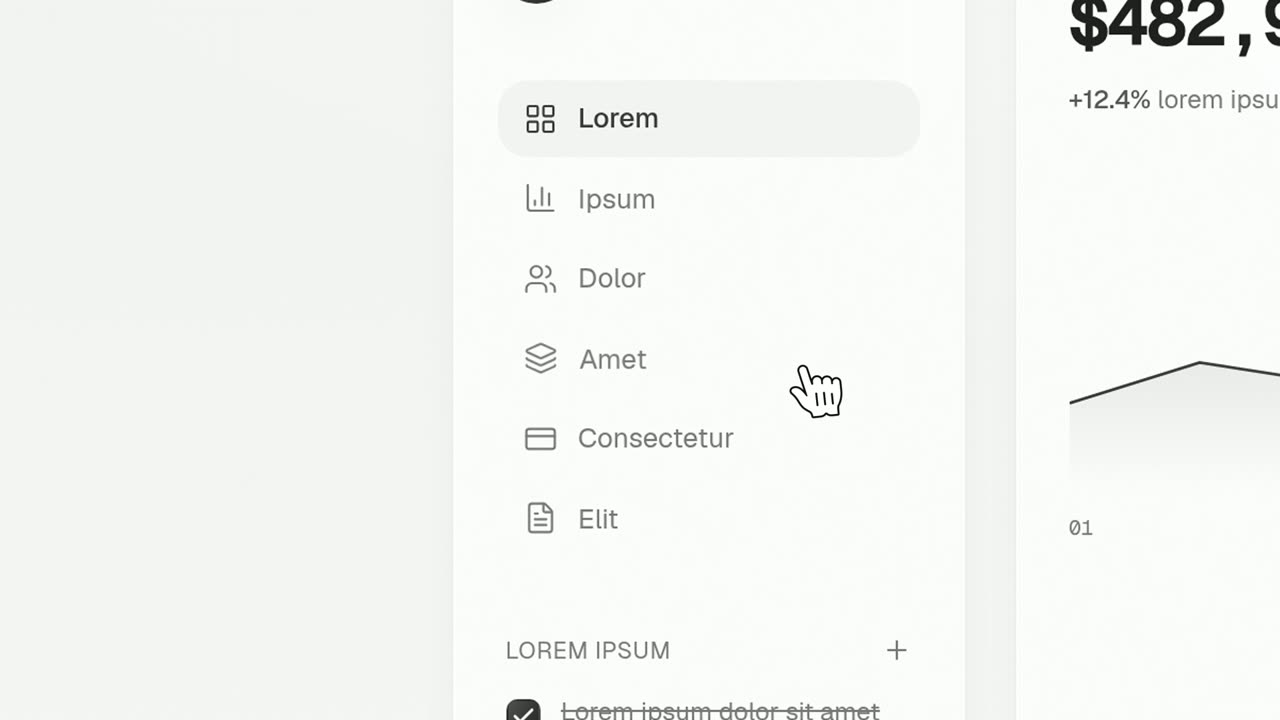
Cursor Press
Cursor Press is a three-second close-up where one real button or control from your product sits still and a cursor glides in and presses it.
Feature · your real UI
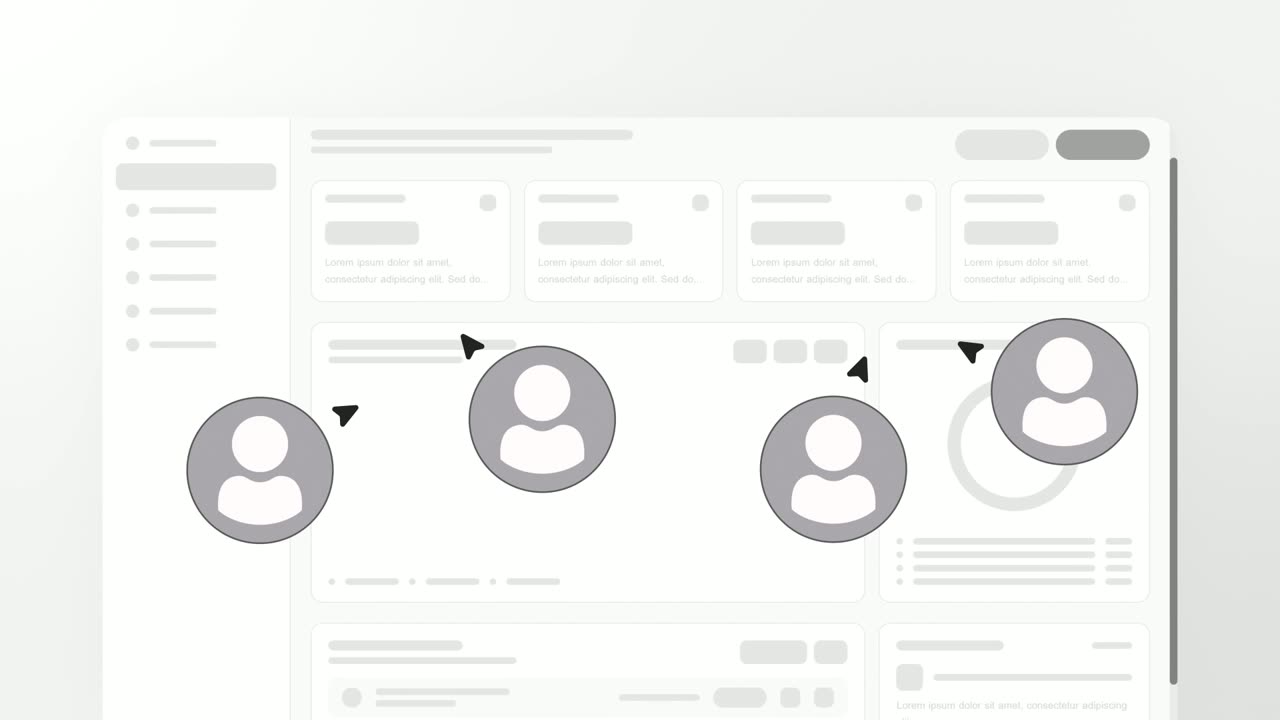
User Connection
User Connection is a team collaboration animation: your real product page sits in a window while four people appear around it as avatars with moving…
Problem
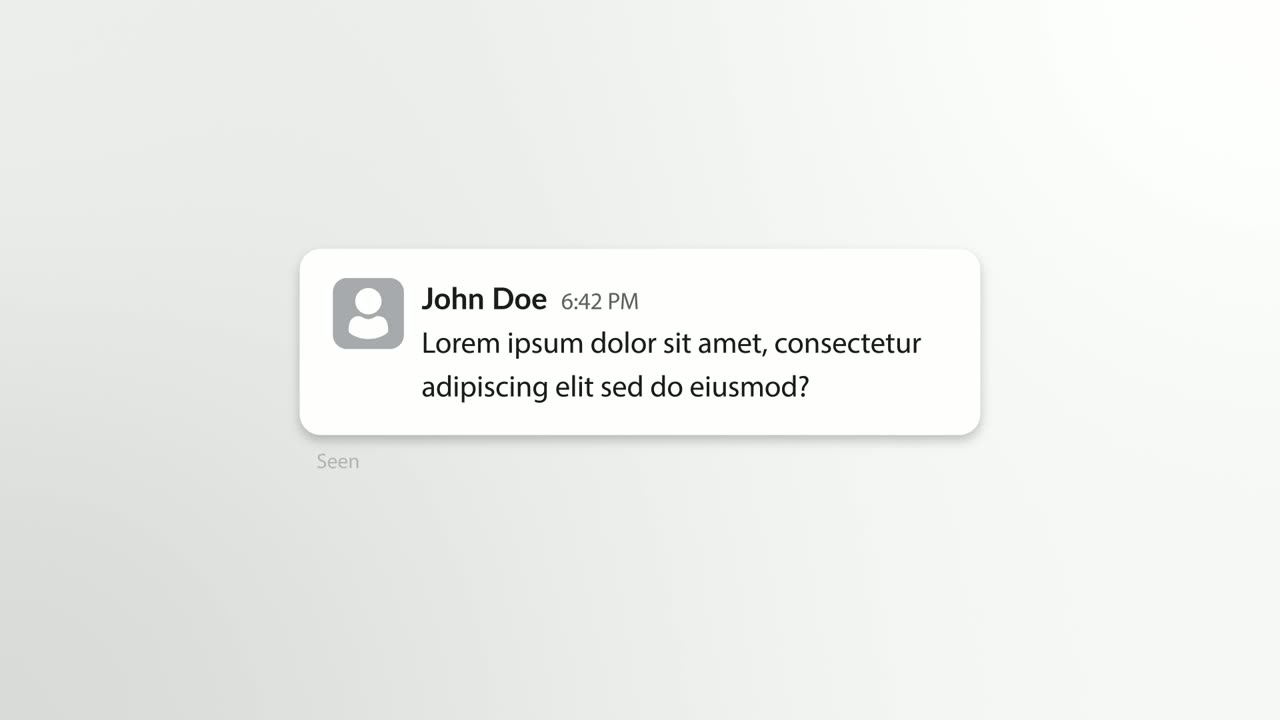
Chat Bubble
Chat Bubble is a four-second scene where a single chat message types into its bubble beside the sender's avatar.
Questions
How long can the comment be?
About eight words at most. The comment has under a second to type and be read, so keep it short and let it carry the detail. Keep the voiceover to one short sentence.
When should I use Cursor Press instead?
Use Cursor Press when the point is a click that gets something done. Cursor Comment is for a note left on the product, not an action.
Can one scene show several comments?
No. Each scene holds one cursor and one comment. For a back and forth, give each comment its own scene or use Chat Conversation.
Put Cursor Comment in your next video
Describe the video in a sentence. The Wevi Agent reads your site, captures your product, plans the scenes and renders with voiceover and music. Start free.
Or ask your assistant: Make a launch video for mysite.com with Wevi and open on the Cursor Comment scene